Common app controls
Updated on October 16, 2026
EON, Theca, Imagine, and SimuLab share the same top bar. What you learn here works in all four apps.
The user menu
Your name sits at the top right. Click it to open the User menu, which has these options:
- NoxDragon apps: shortcuts to EON, Imagine, Theca, and SimuLab. Click one to open it; you stay signed in, with no need to log in again.
- Language: the interface language (see below).
- Manage account: opens the Account app in a new tab, where you manage your profile, plan, AI usage, and organizations.
- Log out.
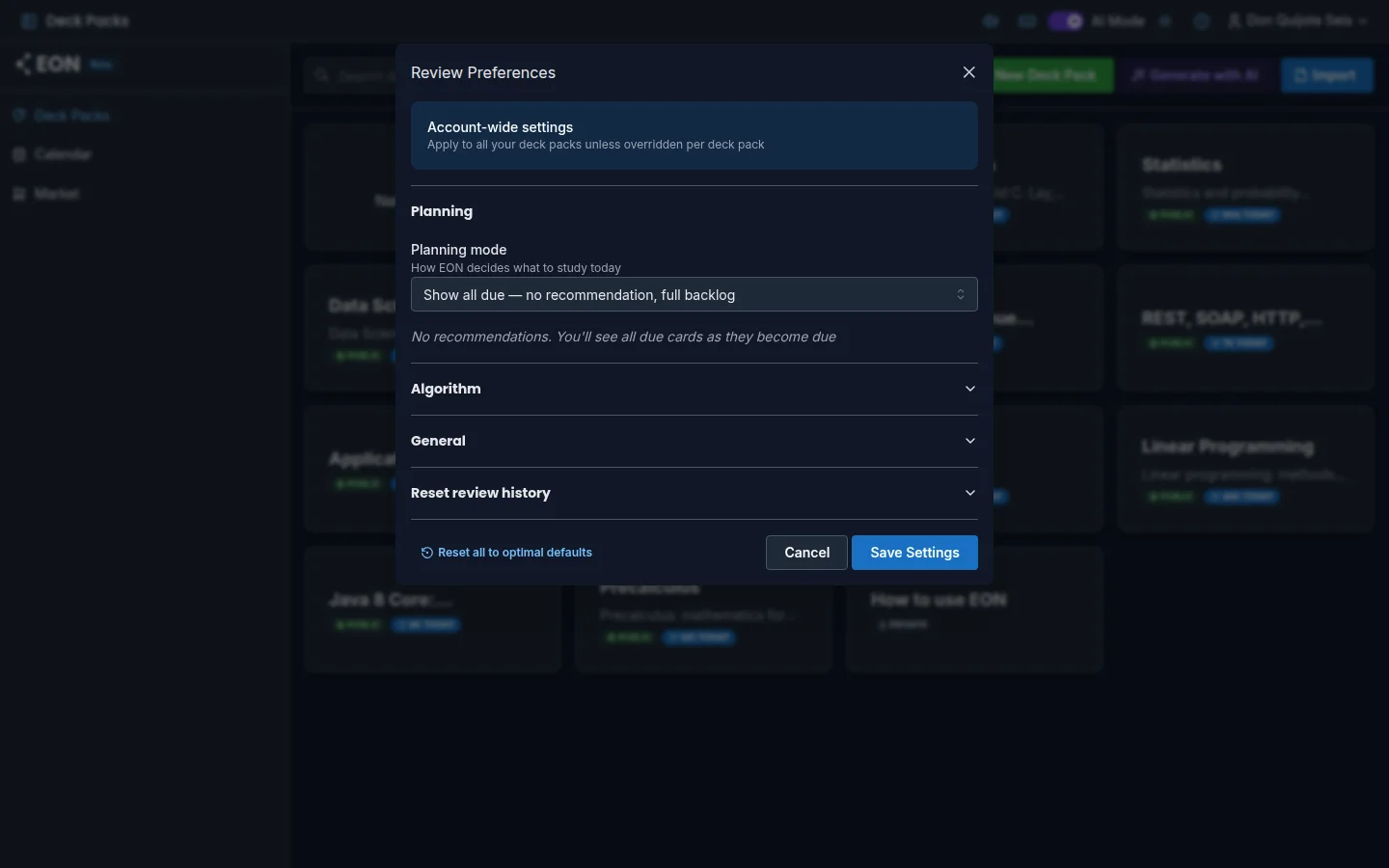
Some apps add their own options to this menu; for example, EON shows Review Preferences.
Change the language
Open the User menu and hover over Language. Choose from English, Español, Português, 한국어, and 日本語.
The language is saved to your account, so the change applies to every app: if you switch to Portuguese in Theca, EON, Imagine, and SimuLab open in Portuguese too, even on another device.
The interface language doesn't change content you've already created. Features that generate content with AI, such as Theca summaries or SimuLab exercises, let you choose the output language separately.
Light or dark theme
The sun or moon button in the top bar toggles between Switch to dark mode and Switch to light mode. Like the language, the theme is saved to your account and applies across all apps.
AI Mode
The AI Mode switch in the top bar turns the apps' AI features on or off. If you'd rather work without AI, turn it off: features that use it are hidden or disabled, so you don't spend your balance by accident. This preference is saved to your account too.
On a phone, the theme and AI Mode move into the User menu to free up space in the bar.
The help button
The question-mark icon, Help and documentation, opens the documentation for the app you're in, in your language, in a new tab.
The welcome tour
The first time you open each app, a short tour highlights the main parts of the screen. Use Next and Back to move through it, Skip to close it, or View documentation to go to the full guide. On the last step, Get started ends it.
The tour appears only once per app: your account remembers you've seen it, on other devices too. In addition, EON, Theca, and Imagine set up some welcome content in your language so you have something to try from the very first minute.
The Beta badge
Theca, Imagine, and SimuLab show a Beta badge next to their name in the sidebar. It means the app is available to every account but still in active development: you'll see frequent improvements, and some screens may change.
Frequently asked questions
I changed the language and one app is still in the old one. What should I do? Reload the page. If you had it open in another tab, the preference applies once you reload it.
Can I see the welcome tour again? The tour doesn't come back on its own. To go over the same things in more detail, use the app's Help and documentation button.
Does turning off AI Mode delete what I already generated with AI? No. Your summaries, cards, and exercises stay where they are. Only the actions that generate new content with AI are hidden or disabled.
Next step
- Account and sign-in: your profile and security
- AI tokens: which features use AI