Canvas and tools
Updated on August 5, 2026
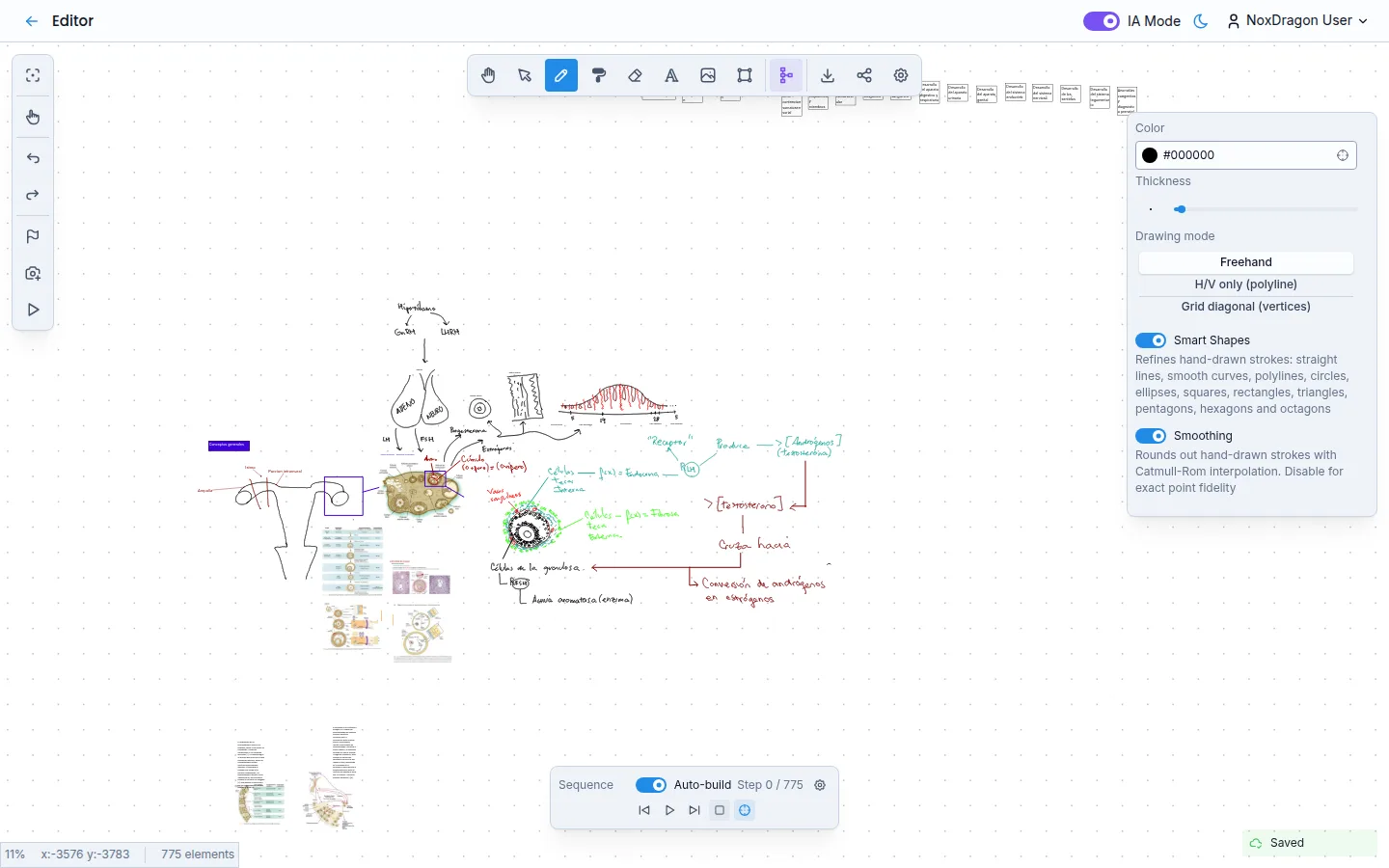
Imagine gives you an infinite canvas where you can draw, place shapes, and build ideas freely. Here are the tools available to you.
Moving around the canvas
Use the Hand tool to pan without touching any element. You can also hold the spacebar and drag at any time, regardless of the active tool.
Drawing freehand
Select the Pen and drag to draw. The options panel on the right lets you adjust Color, Thickness, and Drawing mode:
- Freehand: smooth stroke with no constraints.
- H/V only (polyline): segments are forced to be horizontal or vertical.
- Grid diagonal (vertices): points snap to a grid, ideal for precise diagrams.
The Smoothing toggle rounds out hand-drawn strokes with Catmull-Rom interpolation for a cleaner finish.
Smart Shapes
With the Pen active, turn on the Smart Shapes toggle in the drawing options. When you finish a stroke, Imagine analyzes what you drew and, if it recognizes a clear pattern, automatically replaces it with a precise geometric figure: straight line, smooth curve, polyline, circle, ellipse, square, rectangle, triangle, pentagon, hexagon, or octagon. The original stroke disappears and the clean shape is ready to edit.
This feature is especially useful for building diagrams by hand without spending time adjusting vertices.
Eraser
Select the Eraser tool and pass over any element to delete it. Adjust Thickness to cover a larger or smaller area. If you enable Delete pixels, instead of removing the whole stroke you only erase the part you touch.
Paint bucket
Select Paint bucket, choose a Fill color, and click any closed shape, text box, or label to fill it with that color.
Selecting and moving objects
Activate Select and click any element to select it. To move it, drag the selected element. To select multiple objects at once, hold Shift or Ctrl while clicking, or drag a selection rectangle over the area you want to cover.
Undo and redo
Use Undo (Ctrl+Z) and Redo (Ctrl+Shift+Z) to step back or forward through the history of changes. You can also find these buttons in the left sidebar.
Frequently asked questions
Do Smart Shapes work with all drawing modes? Only with Freehand mode. In H/V only and Grid diagonal modes the stroke already follows strict geometric rules, so Smart Shapes do not apply.
Can I adjust how precise my strokes need to be to convert into shapes? There is no manual threshold. The engine evaluates each stroke's precision and only converts it if confidence exceeds an internal level. If it does not convert, it simply keeps the freehand stroke.
Does the eraser also remove images and text? Yes, it works on any type of element. To avoid accidentally removing a text box or shape, keep Delete pixels off and mind the eraser radius.
Can I undo a Smart Shape conversion? Yes, Ctrl+Z reverts the conversion and restores the original stroke.
Next step
- Text and styles — add text, change colors, and adjust object properties.
- Layers and grouping — control stacking order and work with multiple objects at once.
- Interface tour — an overview of all editor panels.