Presentation mode
Updated on August 5, 2026
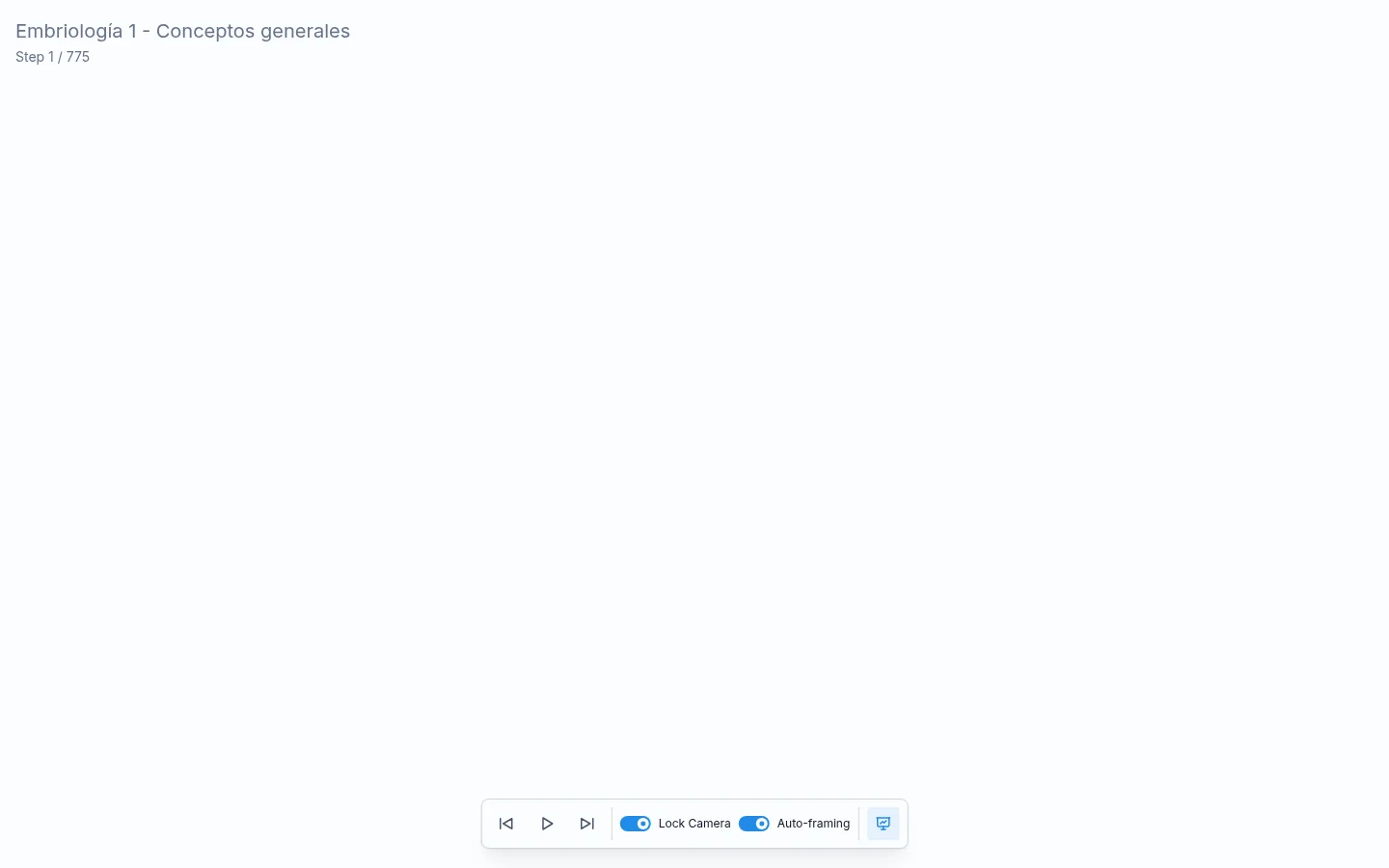
Presentation mode takes your canvas and shows it fullscreen, step by step, without distractions. It is what you activate when it is time to present in front of your audience.
How to enter presentation mode
From the editor, press F5 or click the Play button in the sidebar. The screen switches to fullscreen and a control bar appears at the bottom.
How to advance between steps
You have several ways to move through the sequence:
- Click anywhere on the canvas — advances to the next step.
- Right arrow — next step.
- Left arrow — previous step.
- The Next and Previous buttons in the bottom control bar.
The camera glides smoothly between bookmarks. A counter in the top-right corner tells you which step you are on and how many there are in total.
When you reach the last step, a Presentation finished notice appears. You can click Exit in that notice or press Esc at any time to return to the editor.
Auto-play
If you want the presentation to advance on its own, enable Auto-play in the control bar. Next to it there is a number field to set how many seconds to wait between steps.
Go to a specific step
In the control bar there is a number field and a Go to step button. Type the step number you want to jump to and click the button to go directly there, skipping all the steps in between.
The laser pointer
While presenting, hold Shift and move the mouse to activate the Laser. A red dot appears to mark exactly where you are pointing on the canvas. It is useful for drawing your audience's attention to a specific detail without adding permanent marks to the canvas.
You can also activate the laser from the sidebar with the Laser button before entering presentation mode.
The mini-map
On large canvases where content extends beyond the visible area, the Mini-map shows a bird's-eye view of the entire canvas. A blue rectangle indicates which part is currently on screen.
To enable it, click Mini-map in the top toolbar of the editor. You can click inside the mini-map to move the camera to that area of the canvas.
Tip: if your canvas has many zones, name the bookmarks in the sequence editor so you know at a glance where you are in the presentation.
Frequently asked questions
Can I use presentation mode on a projector or second screen? Yes. Presentation mode fills the entire screen. If you have a second monitor connected, drag the browser window to that screen before entering presentation mode.
Can the audience see my controls? The controls in the bottom bar are only visible while you move the mouse. When you stop moving, they hide automatically so they don't distract.
Can I share the presentation so others can view it without the editor? Yes. See sharing to generate a view-only link that anyone can open without an account.
What if I haven't created any steps? The play button appears disabled with the text Create camera bookmarks or sequence first. You need at least one bookmark or sequence step to enter presentation mode.
Next step
- Timeline and steps — adjust the order and bookmarks before presenting.
- Sharing — generate a link so your audience can view the presentation from their device.
- Exporting your work — if you would rather send the explanation recorded than present it live.