Shapes and connectors
Updated on October 16, 2026
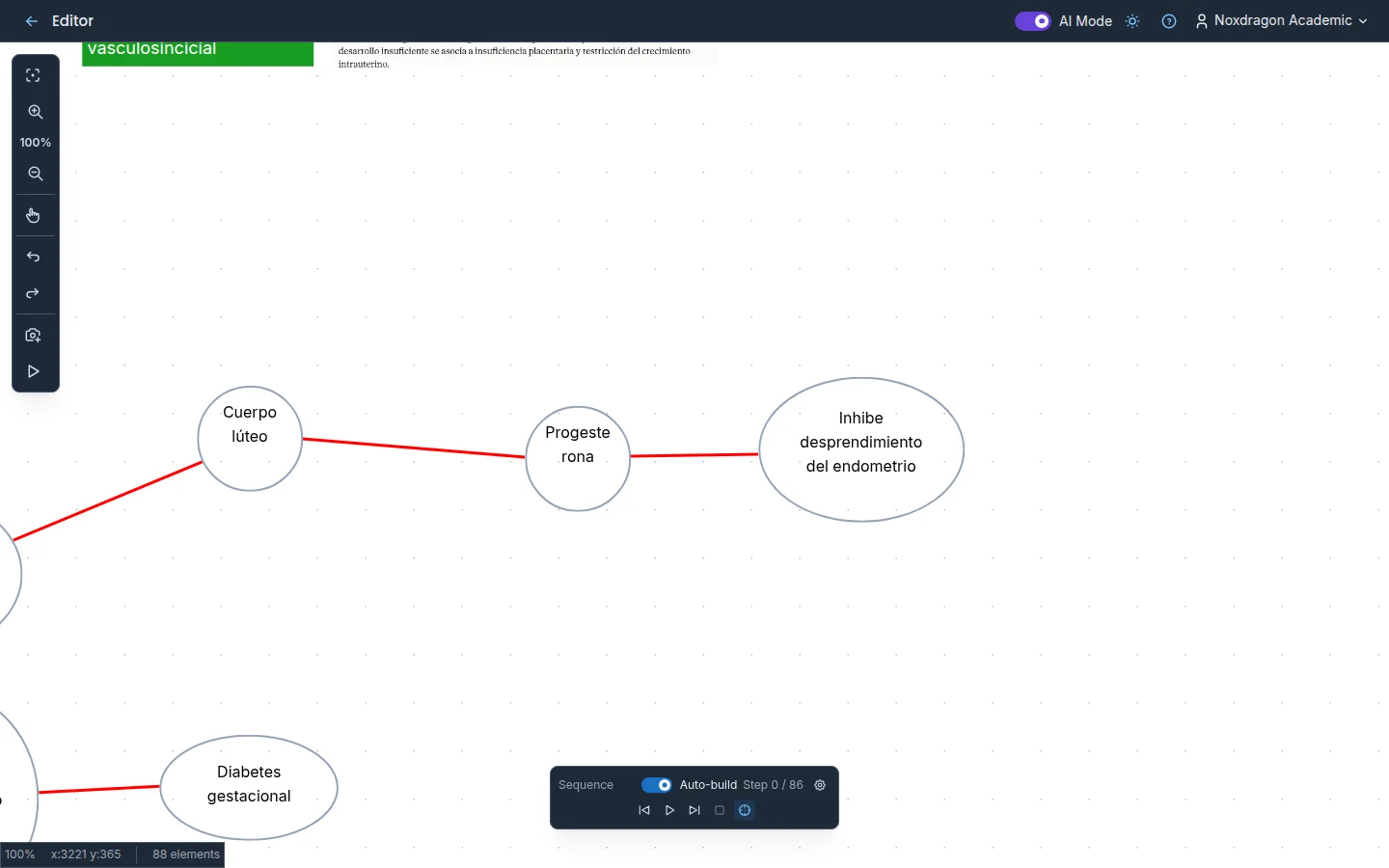
You don't need to draw every box by hand to build a diagram. The Advanced shapes menu in the toolbar brings together ready-made shapes and connectors that link them to each other.
The Advanced shapes menu
Open it with the shapes icon, to the right of Image. It has four groups:
- Connector: the Connector tool for linking elements with lines.
- Graphs: Circular node and Square node.
- Flowcharts: Process, Start / End, Decision and Input / Output.
- Labels: the Label tool, explained in text and styles.
Drawing a shape
- Pick a shape from Graphs or Flowcharts.
- Drag on the canvas from one corner to the opposite one. The shape grows as you drag.
- Hold down Shift while dragging to keep its proportions.
If you just click, the shape appears at its default size, centered where you clicked.
Each shape is a text box with an outline: double-click it with Select to type inside. From the Text panel you can change its Shape, Background, Border width and Border color, just like any other text box. To resize it, drag any of its eight handles.
Linking elements with connectors
- Open Advanced shapes and choose Connector.
- Drag from one shape to another. You can also click the starting point and then the end point.
- As you get close to a shape's edge, the connector snaps to it.
A snapped connector follows its shapes: if you move a box, the line readjusts on its own. Connectors can snap to text boxes, shapes, images and labels. If you drop an end in empty space, that end stays free.
Moving the ends
Select a connector with Select and you'll see a handle at each end. Drag it to move it to another point or another shape; drop it near a shape and it snaps back on.
Start and end markers
With a connector selected, the Properties panel shows two pickers, Start and End, with four options:
- None
- Arrow
- Dot
- Diamond
This lets you draw simple arrows, double arrows or diagram-style relationships. The same pickers appear for the straight lines created by Smart Shapes. If you select several lines at once, the change applies to all of them.
In the same panel you can adjust the connector's Stroke color and Stroke width.
FAQ
Why won't my connector snap to the shape? Drop the end closer to the shape's edge or inside it. If you drop it far away, it stays free on the canvas.
Can I change a process shape into a diamond after creating it? Yes. Select it and change its Shape in the Text panel.
Do connectors come with an arrow? No, they're created without markers. Choose Arrow under End (or Start) in the Properties panel.
Do diagrams imported from Mermaid use these same shapes? Yes. Nodes come in as shapes and edges as connectors, so you edit them the same way. See importing Mermaid.
Next steps
- Text and styles: type inside shapes and add labels.
- Selection and stacking order: move and resize several shapes at once.
- Importing Mermaid: generate a complete diagram from code.