Create an exercise
Updated on October 16, 2026
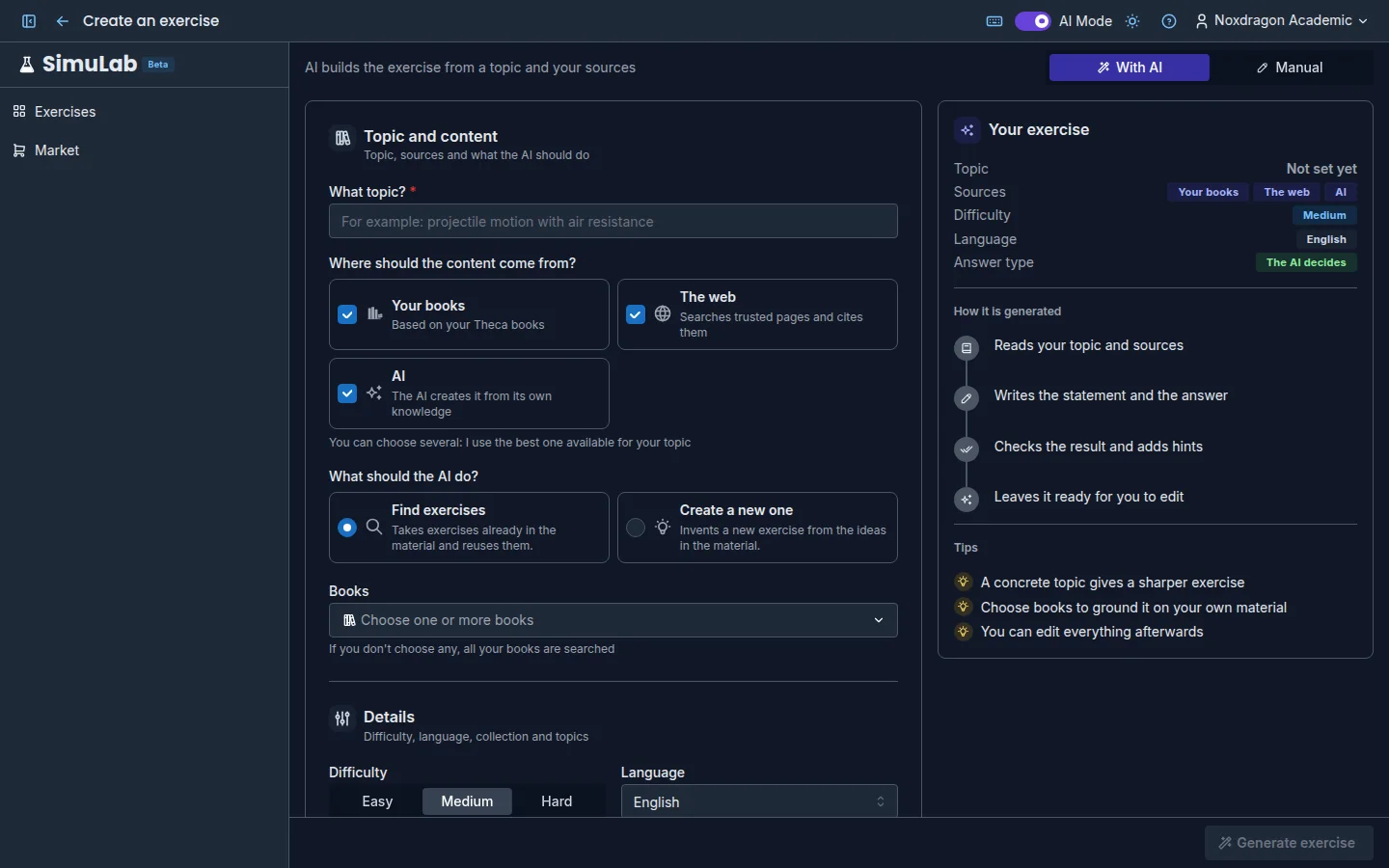
In SimuLab you can create exercises in two ways: let the AI build them from a topic or write them yourself from scratch. Either way you get the same kind of exercise, which you can then fully edit.
Where to create
- In My exercises, click Create exercise in the toolbar.
- Or right-click a collection and choose New exercise here or Generate exercise with AI here: the exercise will be saved in that collection.
At the top of the screen, pick the mode: With AI or Manual.
Create with AI
Fill in the Topic and content section:
- What topic? — describe the topic in detail. For example: integration by parts with trigonometric functions.
- Where should the content come from? — tick one or more sources: Your books, The web or AI. If you choose several, SimuLab uses the best one available for your topic, in this order: your books first, then the web and finally the AI's own knowledge.
- What should the AI do? — appears when you pick books or the web. Find exercises takes exercises that are already in the material; Create a new one invents one from the material's ideas.
- Books — with Your books, click Choose books to select specific titles. If you don't choose any, all your books are searched.
Then, in Details:
- Difficulty — Easy, Medium or Hard.
- Language — the language the exercise will be written in.
- How is it answered? — Automatic (the AI decides) or a fixed format: A number, Multiple choice, Free text or Step by step.
- Advanced options — pin specific values of the exercise with Add value, such as a Data name and its Value (for example:
speed = 20).
On the right, the Your exercise panel shows a live summary of the topic, sources, difficulty, language and answer type, and How it is generated explains the steps the AI will follow. Below you'll find some Tips for better results.
Click Generate exercise and follow the progress on screen. See Generate exercises with AI for each phase.
Create by hand
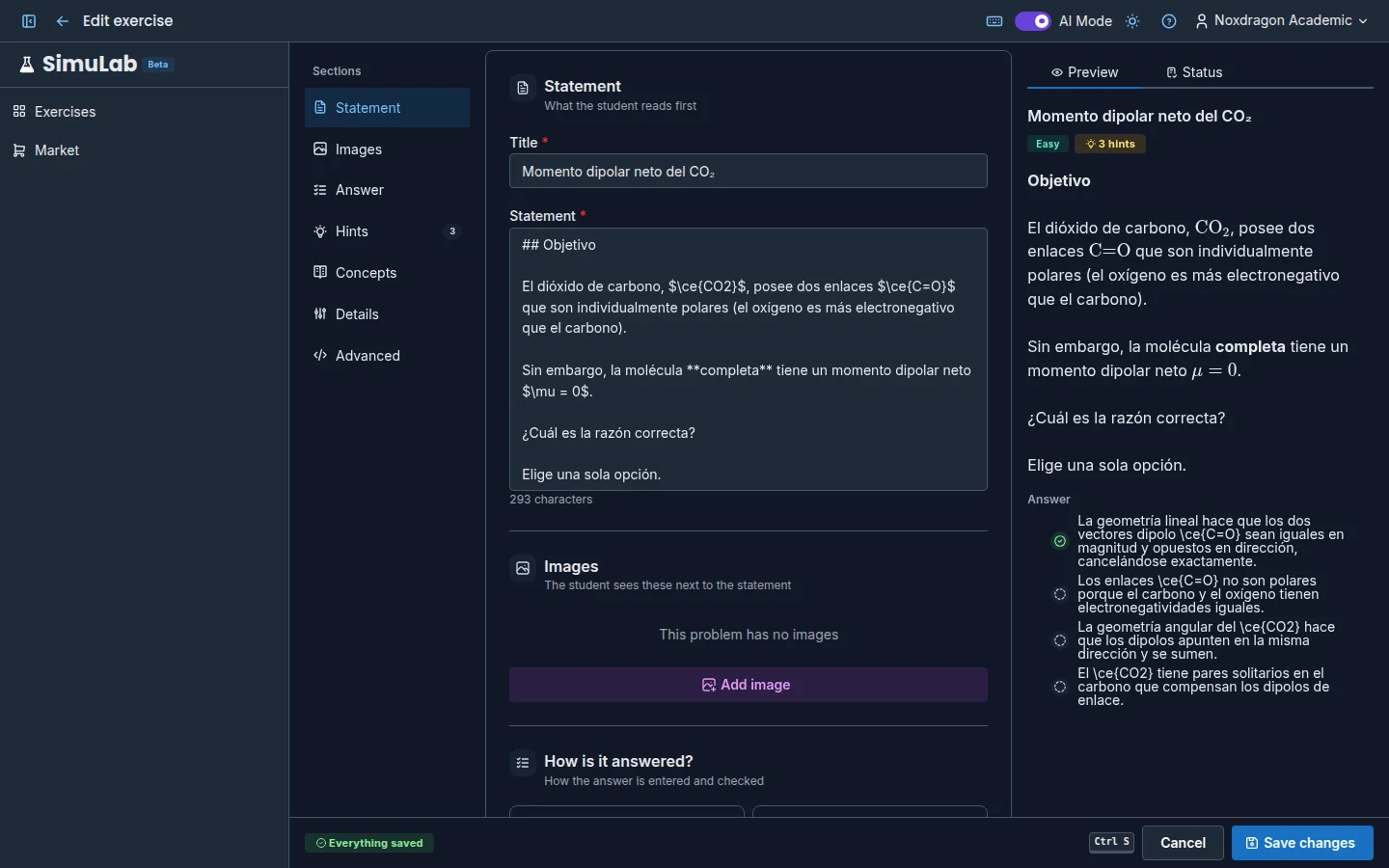
Manual mode opens the exercise editor. There you write the title, the statement, the answer and everything else, and see live how the student will see it. Click Create exercise to save it.
The parts of an exercise
Every exercise, however it's created, has these parts:
- Statement — title and text with formatting, lists and formulas.
- Images (optional) — up to 10, shown to the student next to the statement.
- How is it answered? — the answer type and how it's graded.
- Hints (optional) — a concept map that guides without giving the answer.
- Concepts (optional) — underlined terms with their definition.
- Sources — where the exercise came from, if it was generated from books or the web.
- Details — difficulty, language, collection and topics.
- Advanced (optional) — an interactive animation written in code.
FAQ
Can I change the answer type after creating the exercise? Yes, from Edit. When you switch type you'll need to set up the grading again (correct answers, options, steps or criteria).
Does the AI always generate an animation? No. It only adds one when it helps to understand the topic. If it doesn't, you can write one yourself in the editor's Advanced section.
Why don't I see With AI mode? Because AI Mode is turned off in your user menu. Turn it on to see the AI features again.
How many exercises can I create? It depends on your plan. See Plans and limits.
Next steps
- The exercise editor — every editor section in detail.
- Answer types — when to use each format and how to set it up.
- Generate exercises with AI — phases, warnings and collection generation.