The exercise editor
Updated on October 16, 2026
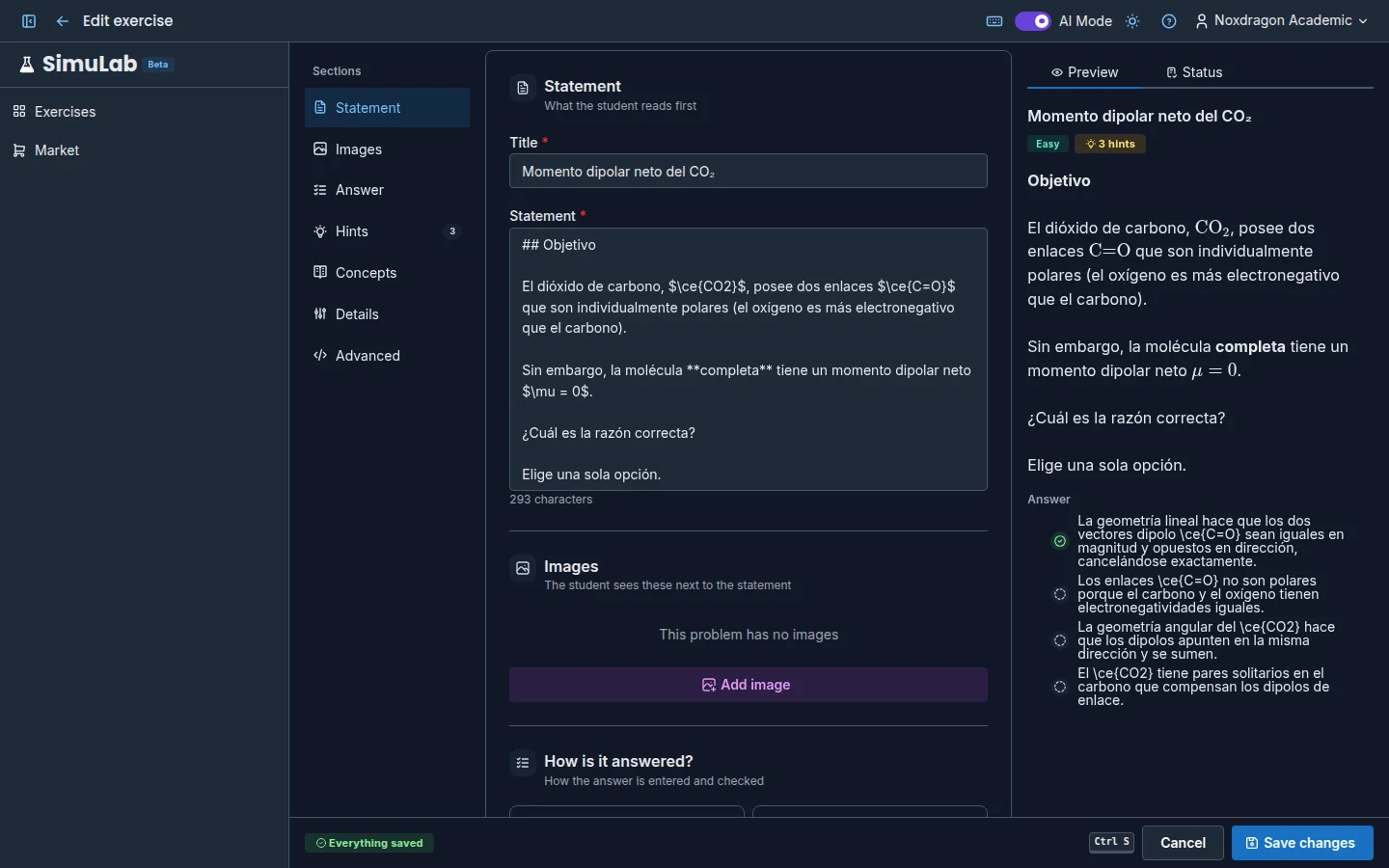
The editor is where you write or polish an exercise. It opens in full screen when you create an exercise in Manual mode or click Edit on an existing one.
How it's organized
The editor has three areas:
- Sections (left) — the list of the exercise's sections. Click one to jump to it; the section you're in stays highlighted. Each section shows how many items it has (images, hints, concepts) and a warning if something needs fixing.
- The form (middle) — all the sections, one below the other.
- Preview and status (right) — with two tabs:
- Preview — the exercise as the student will see it, updated as you type: title, statement with formulas, images, answer, hints and concepts.
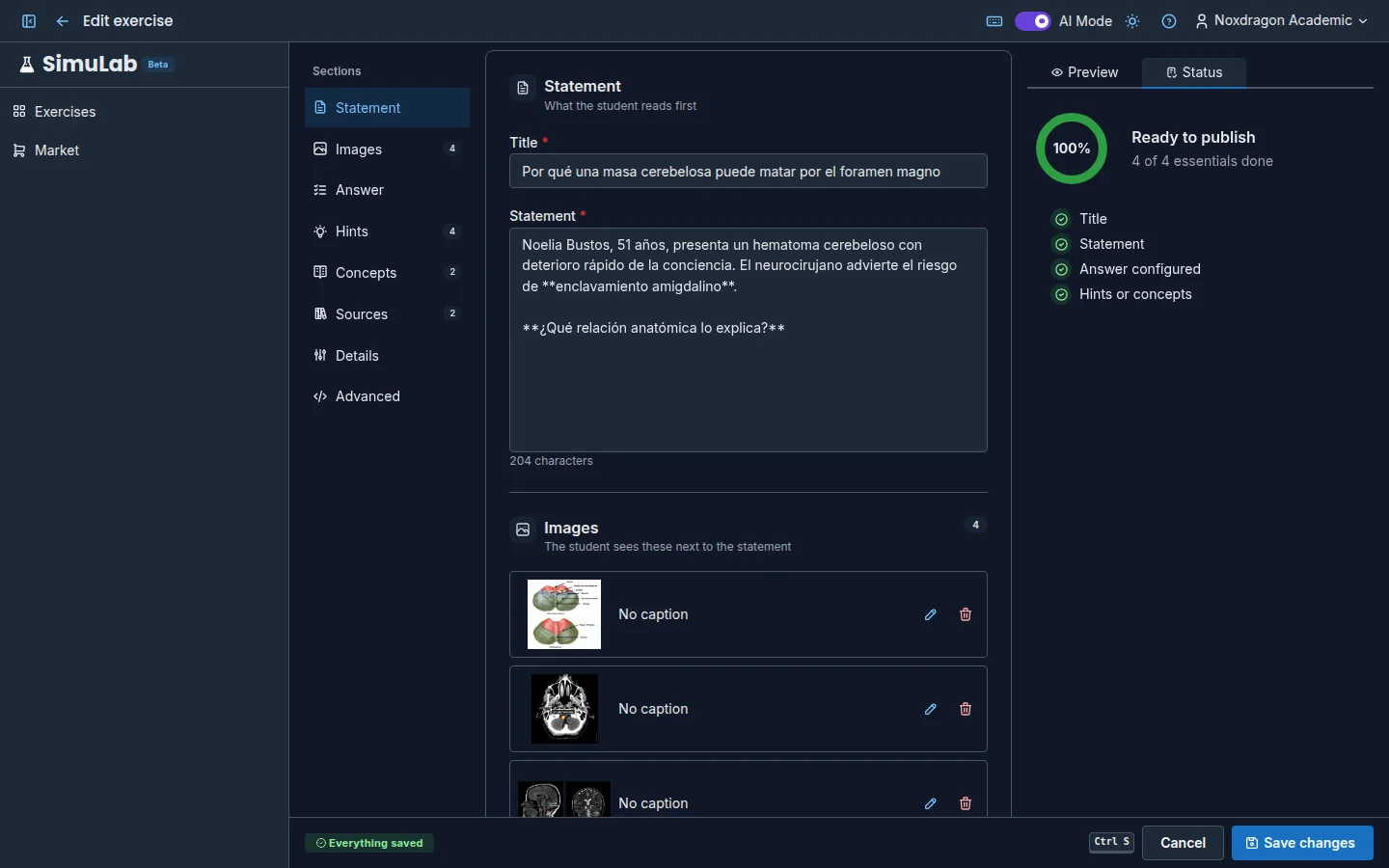
- Status — the Ready to publish checklist.
On narrow screens you can switch between Edit and Preview and status.
Ready to publish
The Status tab tells you how many essentials are done (for example, 3 of 4 essentials done):
- Title
- Statement
- Answer configured
- Hints or concepts
Saving
The editor bar shows whether the exercise is Not saved yet or Everything saved. Click Save changes (or Create exercise if it's new), or press Ctrl+S (⌘+S on Mac).
If something required is missing, the bar shows how many things need fixing and the Fix before saving list. For example: the title and the statement are required, a multiple-choice exercise needs at least two options and one correct option, and a step-by-step exercise needs at least one step.
If you try to leave with pending changes, the editor asks what to do: Discard changes or Save and leave. The back arrow takes you to wherever you opened the editor from.
The sections
Statement — the Title and the statement text. It supports bold, lists and LaTeX formulas ($x^2$ inline, $$...$$ as a block); the result shows in the Preview. A counter shows how many characters you've written.
Images — up to 10 images the student sees next to the statement. Click Add image, drop a file, click to choose one or paste it with Ctrl+V. PNG, JPEG, WebP and GIF are accepted. Each image can have a Caption and a Credit, and you can swap it with Change image.
How is it answered? — the answer type and its grading: correct answers with a margin of error, options, steps, Expected answer and Grading criteria. See Answer types.
Hints — progressive help the student can open while solving. With Add hint you set the Title, Summary, Explanation, Kind (Foundation, Concept or Application) and Comes after, the hints worth opening first.
Concepts — terms in the statement or the hints with a definition the student can open. Click Add concept, type the Term exactly as it appears in the text, choose Where it appears (the statement or a hint) and write the Definition, or click Generate with AI to have the AI write it. You can check the result in the Write and Preview tabs. If the term doesn't appear in the chosen text, the editor warns you it won't be underlined. An exercise can have up to 50 concepts.
Sources — only appears if the exercise was based on books or the web. It shows where it came from and lets you remove sources.
Details — Difficulty, Language, Collection and Topics (free labels to find your exercises).
Advanced — inside Advanced options you can write the Simulation code to add an animation and test it with Preview. See Scene language.
FAQ
Is the preview exactly what the student will see? It shows the same formatting, formulas, images and source citations as the solve screen, in a more compact panel.
Can I edit an exercise the AI generated? Yes. Everything the AI generated can be changed in the editor.
Why can't I edit an exercise? If it's marked Read-only, it's above your plan limit. You can open, solve and delete it, but not edit it. See Plans and limits.
Next steps
- Answer types — set up the grading for each format.
- Explain with AI — how concepts show up while solving.
- Scene language — write animations for your exercises.