Explain with AI
Updated on October 16, 2026
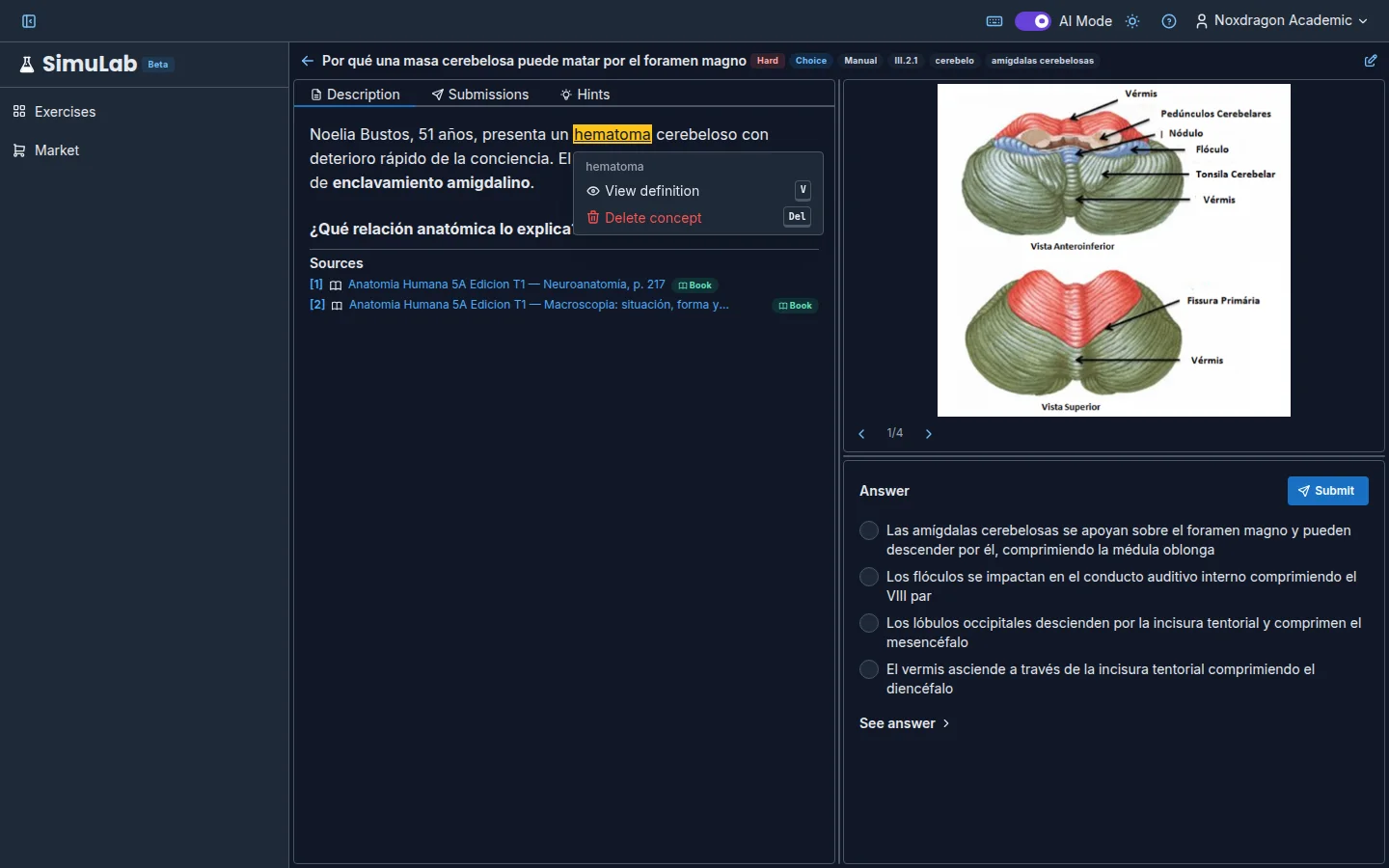
Sometimes what holds you back isn't the exercise but a single word: moment of inertia, pKa, injective function. With Explain with AI you select that term and the AI gives you its definition without leaving the exercise.
Asking for an explanation
- On the solve screen, select the term or phrase you don't understand with the mouse. It works in the statement and in hint explanations.
- Press the
Ekey, or right-click the selection and choose Explain with AI. - A card appears with Generating the definition… and, a few seconds later, the definition.
The definition is written in the interface language and can include formatting and formulas. The card shows which model generated it and lets you copy it with Copy.
Select short fragments: up to 300 characters. If the selection is longer, the app asks you to shorten it.
The concept stays underlined
Once explained, the term stays underlined in the text. It's a concept saved in the exercise, so you'll find it next time you open it.
- Hover over the underline to see the definition instantly.
- Right-click it (or press
Enterwith the underline selected) to open its menu: View definition (V) or Delete concept (Del).
If the term is inside a formula, the concept is marked right after the formula.
Concepts in the editor
The concepts you ask for while solving also show up in the editor's Concepts section, marked as AI-generated. There you can fix the definition, regenerate it with Regenerate with AI, remove it or write new concepts by hand with Add concept. Those written by the author show as Written by the author.
An exercise can have up to 50 concepts. If you hit the maximum, delete one to add another.
When it's available
- AI Mode must be turned on in your user menu.
- It works on your own exercises (the ones you created, generated, imported or cloned). If an exercise is Read-only because of your plan limit, no concepts can be added.
- Like every AI feature, it uses your plan's AI usage.
FAQ
Does the explanation give me the exercise's answer? No. It explains the term you selected; it doesn't solve the exercise.
Can I explain a word that's already underlined? Hover over it to see the existing definition. If it doesn't help, delete it and ask again.
What if the explanation fails? The card shows the reason and a Try again button.
Next steps
- Hints — a map of all the exercise's concepts.
- The exercise editor — manage concepts in the Concepts section.
- Keyboard shortcuts —
E,V,Deland the rest.