Organize with nested collections
Updated on October 16, 2026
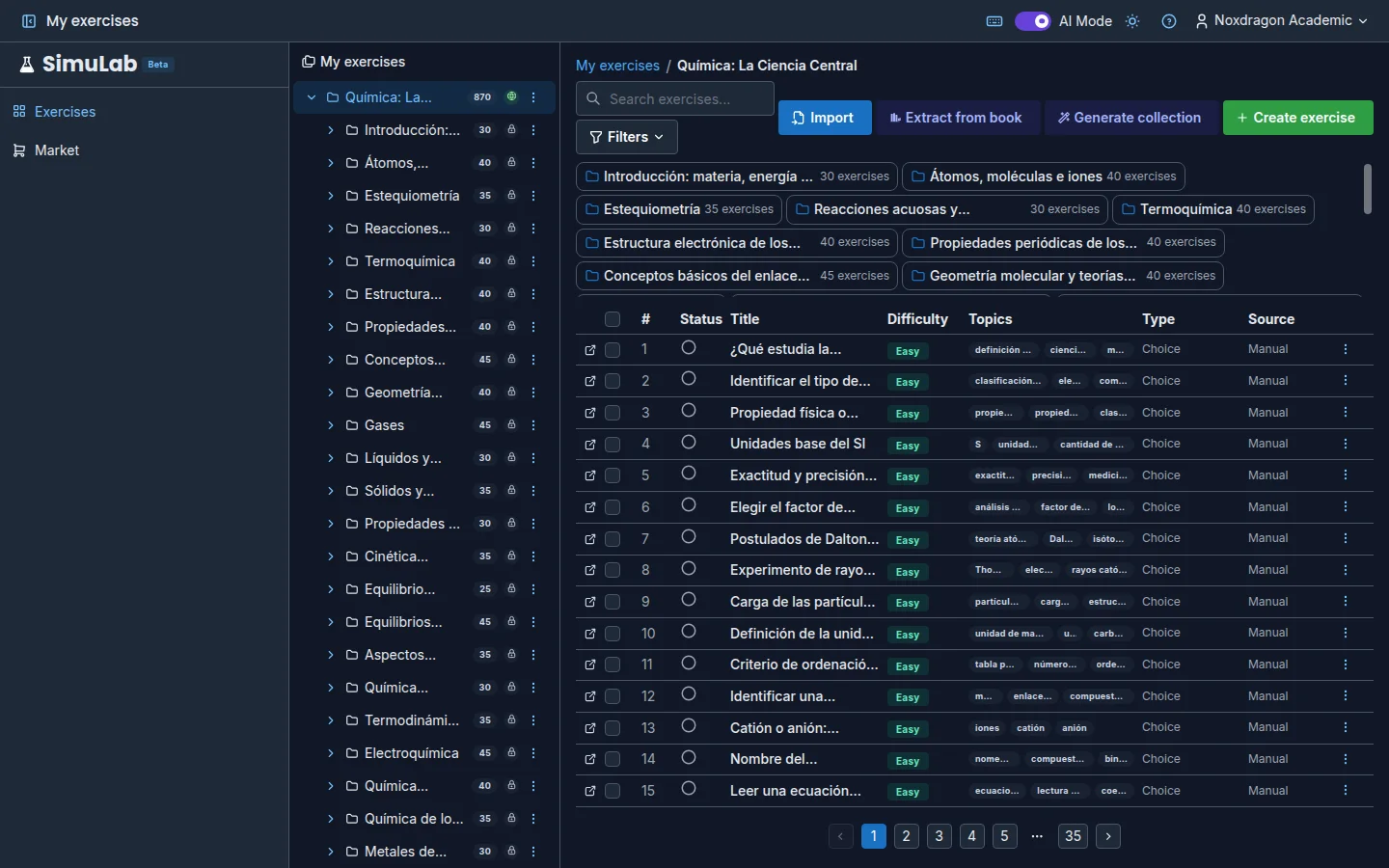
A collection can contain other collections. That way you build a structure like "Physics" with "Kinematics", "Dynamics" and "Thermodynamics" inside, and reach any group of exercises quickly.
The collection tree
The left panel shows all your collections as a tree. Click one to see its exercises. If it has subcollections, use the arrow to Expand or Collapse them.
On desktop you can drag a collection to another spot in the tree to reorder it or put it inside another one. The tree allows up to three levels; if a move would go deeper, the app blocks it and lets you know.
Breadcrumbs and subcollection chips
When you open a collection, breadcrumbs appear at the top: My exercises › Physics › Kinematics. Click any level to go back to it.
Below, chips show the subcollections of the open collection. Click a chip to open it, or right-click it for its menu.
The exercise table
Each collection shows its exercises in a table with the Status (Solved, Attempted or To do), Title, Difficulty, Topics, Type and Source columns. If there are many, the table shows 25 per page.
- Search — type in Search exercises....
- Filters — filter by difficulty or status.
- Sort — inside Filters: Collection order, Most recent, Title or Difficulty.
- Include subcollections — turn on this switch in Filters to also see exercises from subcollections.
Multi-select
- Exercises — tick the row checkboxes (or Select all). A bar appears to Move to... or Delete them all at once.
- Collections —
Ctrl+click orShift+click in the tree or on the chips to select several. The bar lets you move or delete them together.
FAQ
How many collection levels can I have? Up to three: a collection, its subcollections and theirs.
Does search find exercises in subcollections? Yes, if you turn on Include subcollections in Filters. Otherwise it only searches the open collection.
Can I reorder collections on mobile? Dragging only works on desktop. On mobile, use Move to... in the collection's menu.
Next steps
- Collections — create, edit and delete collections.
- Publish to the market — share a well-organized collection.