Solve an exercise
Updated on October 16, 2026
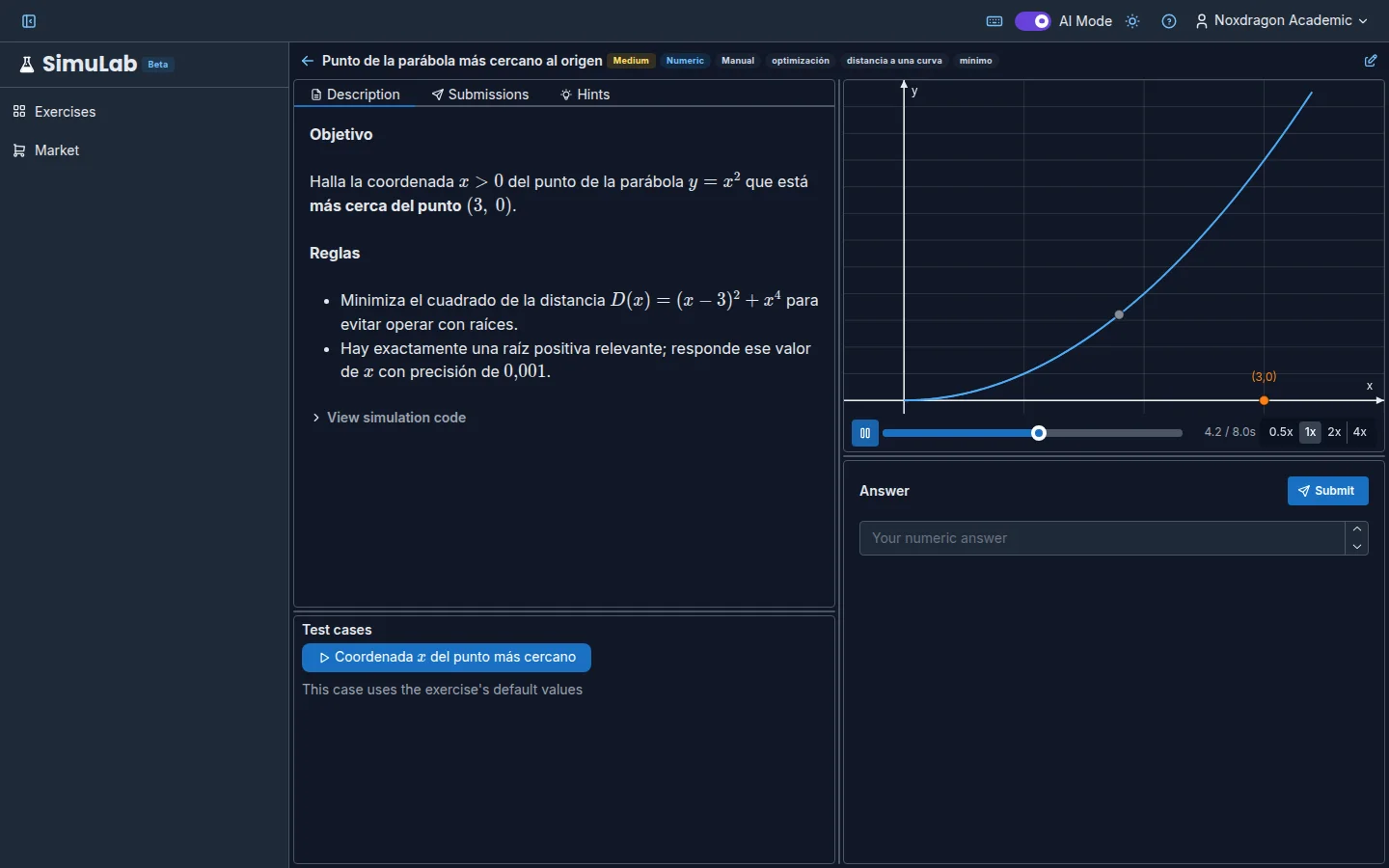
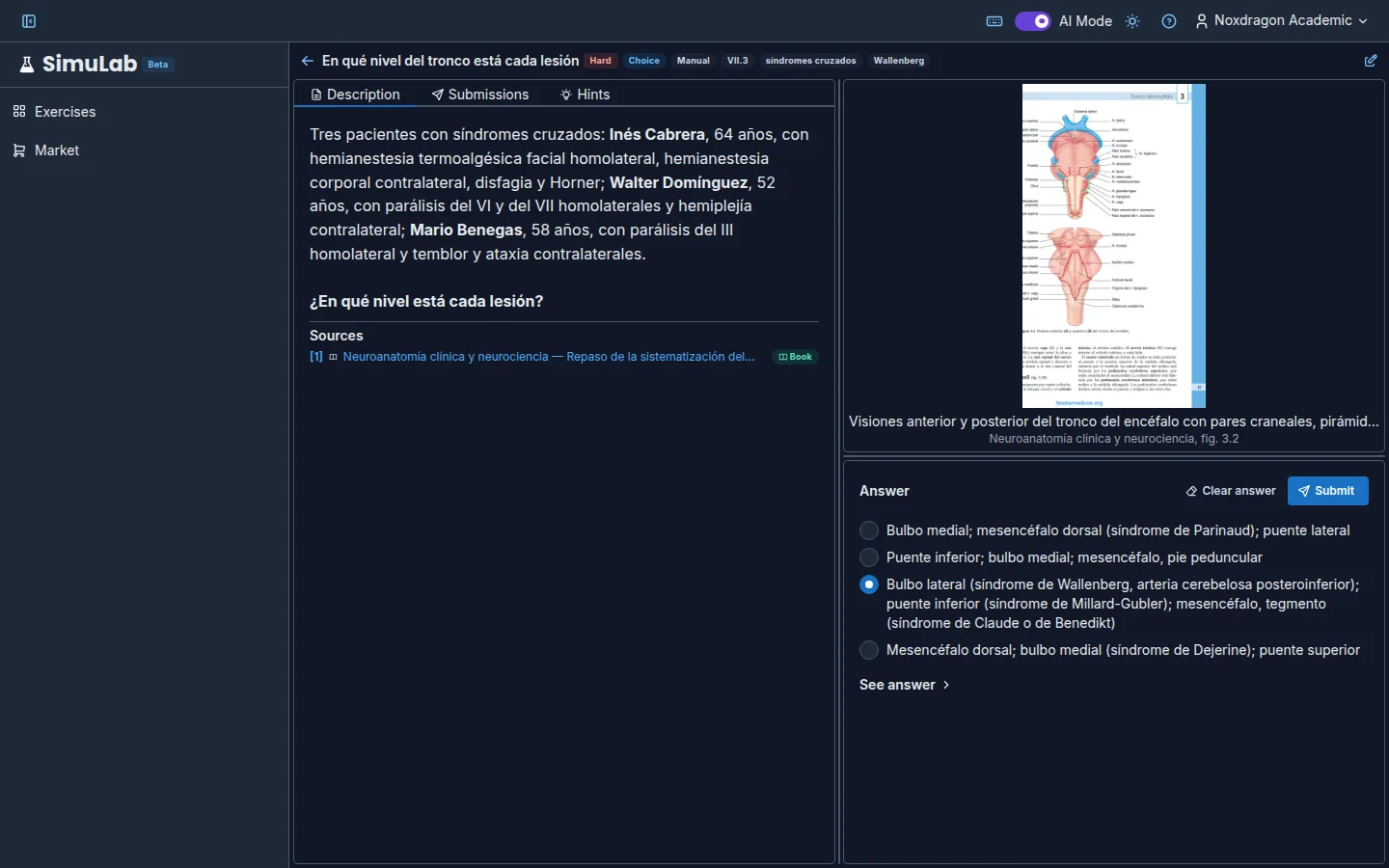
When you open an exercise, SimuLab splits the screen into panels: the statement on the left and, on the right, the visual part and the answer panel. You can resize each panel by dragging its edges.
The header
At the top you have Back to exercises, the exercise title with its topics and the Edit button. If the exercise belongs to a collection, the Previous exercise and Next exercise buttons move you through it; you can also use the [ and ] keys.
The statement and its tabs
The left panel has three tabs:
- Description — the full statement, with formatting and math formulas.
- Submissions — your attempt history.
- Hints — a concept map for when you're stuck.
If the exercise was generated from books or the web, the statement includes citations like [S1]. Hover over a citation to see which source it comes from; for Theca books you'll also see the page. The full list is under Sources, below the statement.
If the AI generated the exercise, you'll see the AI-generated exercise notice, with the model that wrote it. You can close it with Dismiss.
Select any term in the statement and press
E(or right-click and choose Explain with AI) to get its definition. See Explain with AI.
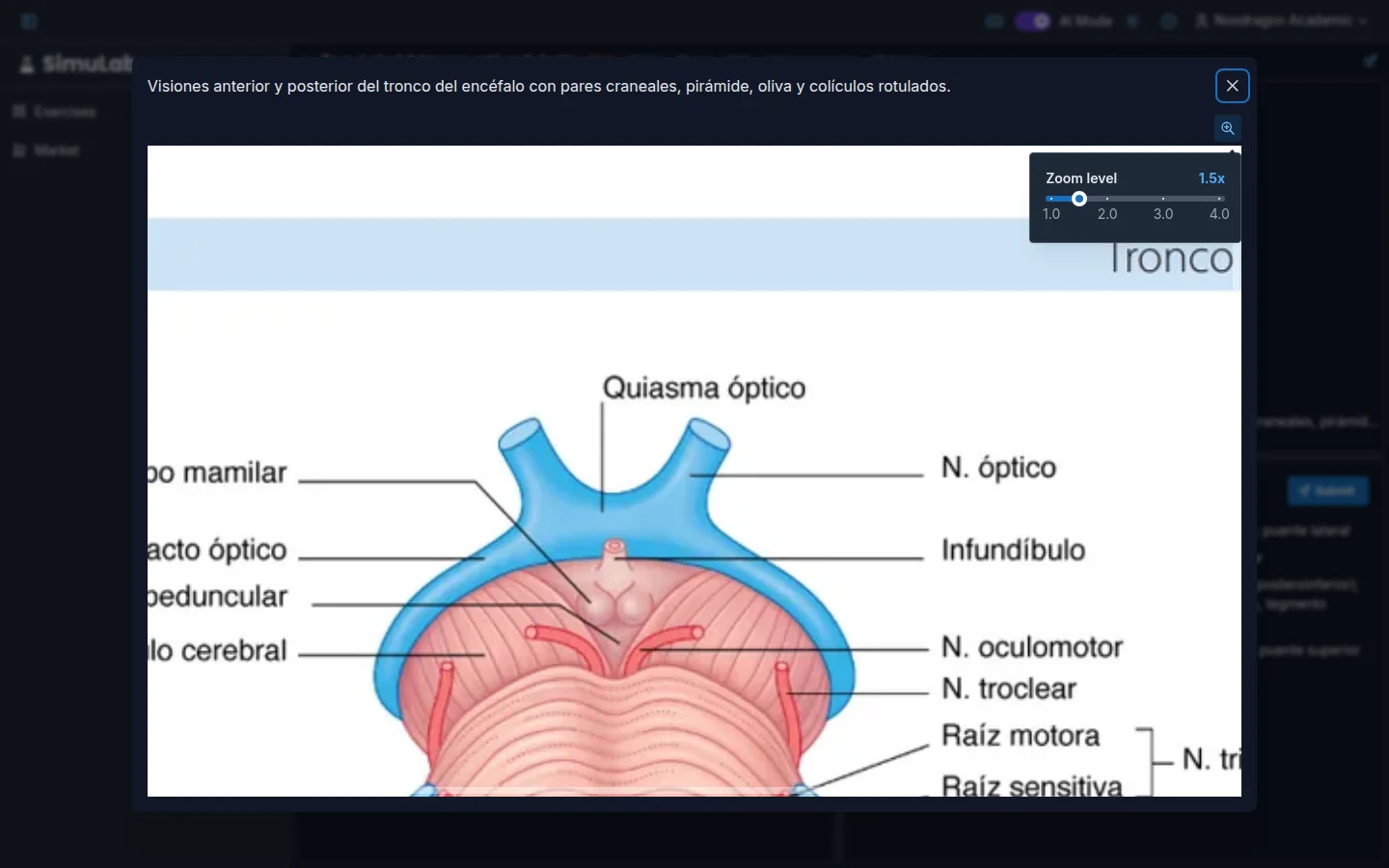
Images and simulation
The top-right panel shows the exercise images, the Simulation or both, with a switch to toggle between Image and Simulation.
- If there are several images, move between them with Previous and Next or the arrow keys.
- Press
Zor the Magnifier button to zoom into part of the image; zoom in or out with+and−, and leave withEsc. - If an image can't be shown, you'll see Image unavailable with an option to try again.
The simulation is controlled with Play, Pause and Speed. See Interactive scenes.
The answer panel
Below the visual part (or on the right, if there isn't one) is the Answer panel. What it shows depends on the exercise type:
- A number — type the value in Your numeric answer. If there are several cases, fill in each one.
- Multiple choice — tick the right option or options.
- Free text — write in Write your answer.... If you include formulas, you'll see a Preview.
- Step by step — fill in one field per Step.
To start over, Clear answer empties the panel without deleting your submissions.
Submitting the answer
Click Submit or press Ctrl+Enter. If the exercise has several cases, Run all tests (Ctrl+') checks them before you submit.
The correction appears in the same panel: the Result (Passed, Failed or Partial) and the Feedback. Each attempt is saved in the Submissions tab. If the exercise allows it, you can also reveal the Expected answer with See answer.
On mobile
On small screens, each panel (statement, simulation, answer and test cases) has its own tab.
FAQ
Can I see my previous attempts while solving? Yes. Switch to the Submissions tab whenever you like; you won't lose what you're typing.
Is there a limit on attempts? No. You can submit as many times as you want.
Why can't I submit? If the panel is empty, the app asks you to write your answer before running or submitting. If a numeric exercise has no expected answer set up, it can't be answered yet: edit it to add one.
Next steps
- Submissions and feedback — read the correction and the history.
- Hints — what hints are and when to ask for them.
- Keyboard shortcuts — every shortcut on the solve screen.