Getting started with Imagine
Updated on August 5, 2026
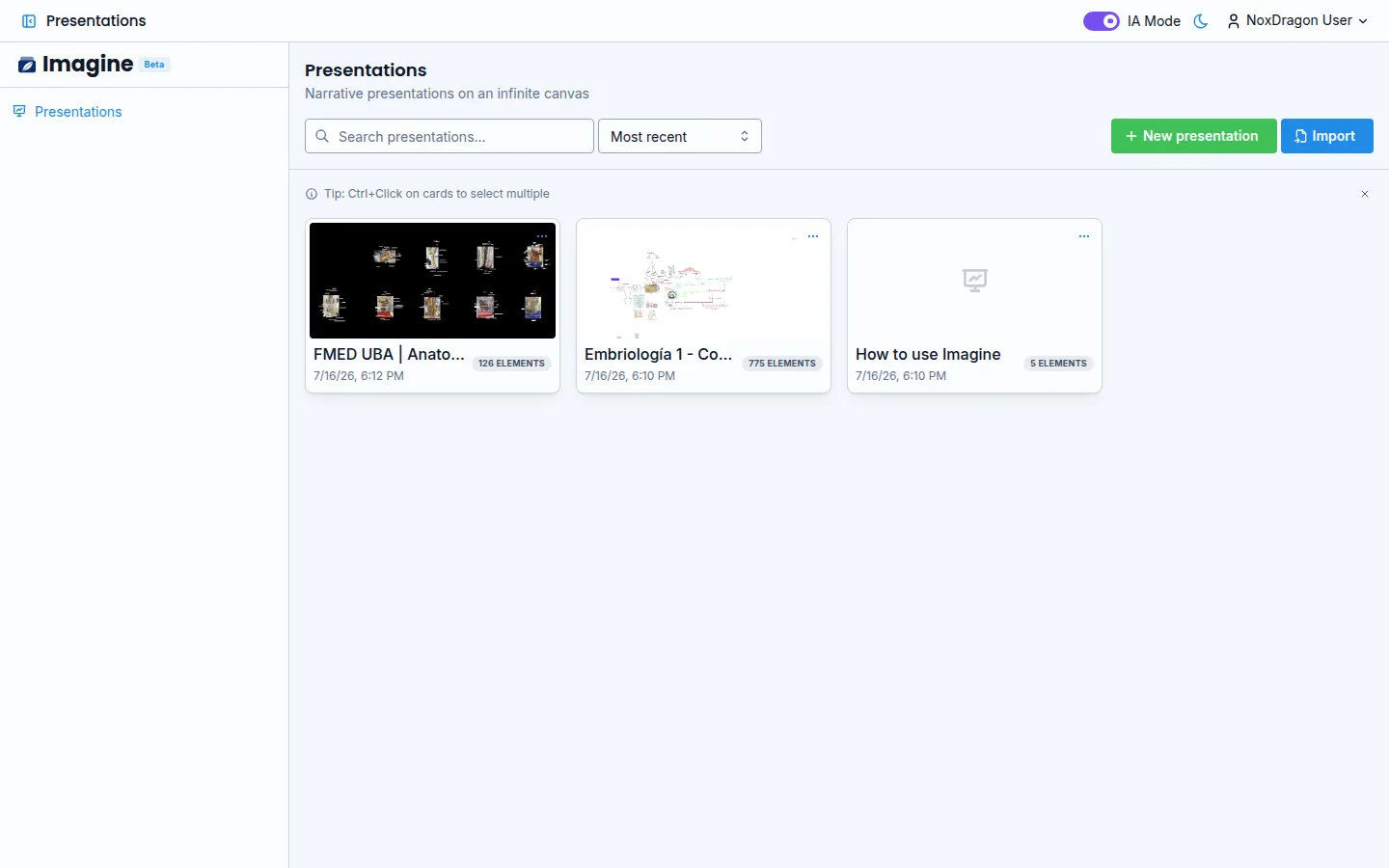
Imagine is a canvas for explaining ideas step by step. Draw, write, and organize on an infinite canvas, then play everything back as an animated presentation. This guide takes you from your first login to your first finished presentation.
1. Open the app
Go to imagine.noxdragon.com and sign in with your NoxDragon account. If you don't have one yet, you can create it on that same screen.
2. The welcome tour
The first time you open Imagine, the app walks you through the essentials. Use Next to advance, Back to go back, or Skip to dismiss it. The tour covers these topics in order:
- Welcome to Imagine — what the infinite canvas is and what it's for.
- Create a presentation — start a blank canvas or import an
.imginfile to pick up where you left off. - Draw and build — sketch with the pen, drop shapes, labels and text boxes, then move freely around the canvas.
- Generate with AI — turn on IA Mode to import Mermaid diagrams and generate structured visuals from a topic.
- Present and export — build a sequence of camera bookmarks, play your story and export it to PNG, PDF or MP4.
At the end, Get started closes the tour. You can open the documentation at any time from the help button.
3. Create your first presentation
From the home screen, click New presentation, type a name, and click Create. Imagine opens a blank canvas and you can start drawing or writing right away.
4. What you can do in Imagine
- Sketch freehand with the Pen and refine strokes with Smart Shapes.
- Insert Text, images, Labels, and flowchart or graph shapes.
- Organize content across layers (Background, Foreground, Reference).
- Build a step sequence with camera bookmarks and play it back as a presentation.
- Share a presentation with a link or export it as a video, PDF, or image.
When you finish a session, your work is saved automatically and synced to your account. You can pick it up from any device.
Frequently asked questions
Can I skip the tour and come back to it later? The tour only appears automatically on your first visit. You can read this documentation at any time afterwards.
What is an .imgin file?
It is Imagine's native format. It stores all the content of a presentation and you can import or export it from the home screen.
Can I use Imagine without internet access? Yes. The canvas works offline and changes sync as soon as you are back online. See sync and offline mode for details.
Next step
- Interface tour — learn every part of the screen and the toolbar.
- Canvas and tools — how to draw, select, and move elements.
- Timeline and steps — how to build the narrative of your presentation.