Organizations
Updated on October 16, 2026
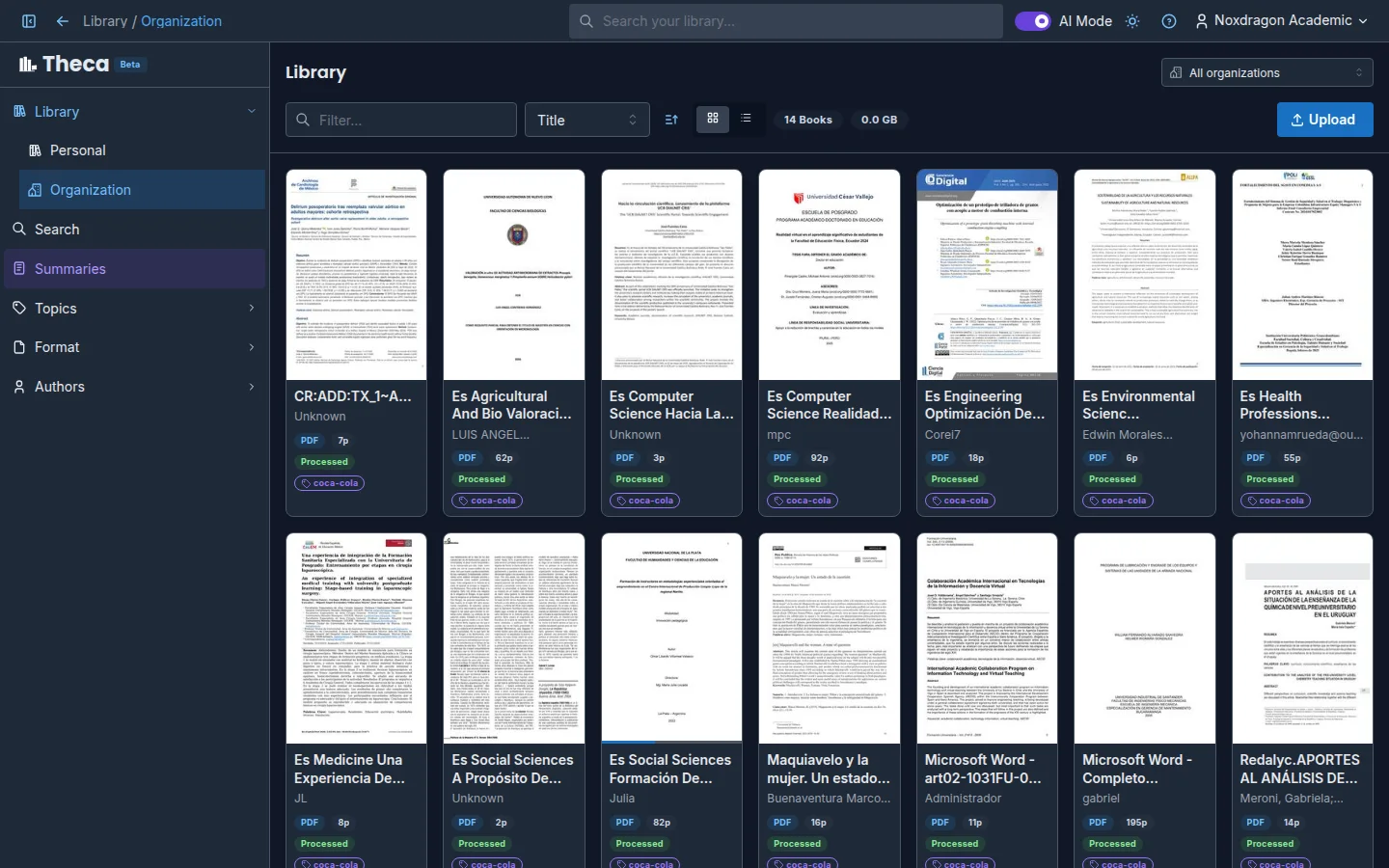
If your account belongs to an organization (your institution or your team, for example), Theca gives you a second shelf with the books that organization shares. You can read them, search them, and use them in your summaries.
The Organization shelf
With at least one organization, the sidebar shows two shelves under Library:
- Personal — your books. Organization books don't appear here.
- Organization — the books shared with your organizations. If you belong to several, use the selector to see just one or All organizations.
Organization books carry the Organization badge, with their organization tags next to it.
Organization tags and the «base» tag
Every shared book carries at least one organization tag. Tags decide who sees it:
- base — every member of the organization sees it.
- Any other tag only reaches the members who hold that tag.
Organization tags are not the same as your topics, which are personal.
What you can do depending on your role
- All members can read the books meant for them, search them, use them in summaries, and copy them to their personal shelf.
- Writers and administrators can also upload books to the organization and share books from their personal shelf with it.
- Administrators can change the tags of any organization book and remove it from the organization.
Upload a book to the organization
- Open the Organization shelf and click Upload.
- Under It will be uploaded to the organization, pick the organization in Choose an organization and select at least one tag.
- Add your files and click Upload.
You stay the owner of the book; the organization gets a shared copy with those tags. If you already had the book on your personal shelf, Theca doesn't duplicate it: it shares it with the organization and lets you know with You already had it; we shared it with the organization.
If you're not allowed to upload, the modal tells you: You cannot upload books to this organization: you need to be a writer or an administrator.

Share a book from your personal shelf
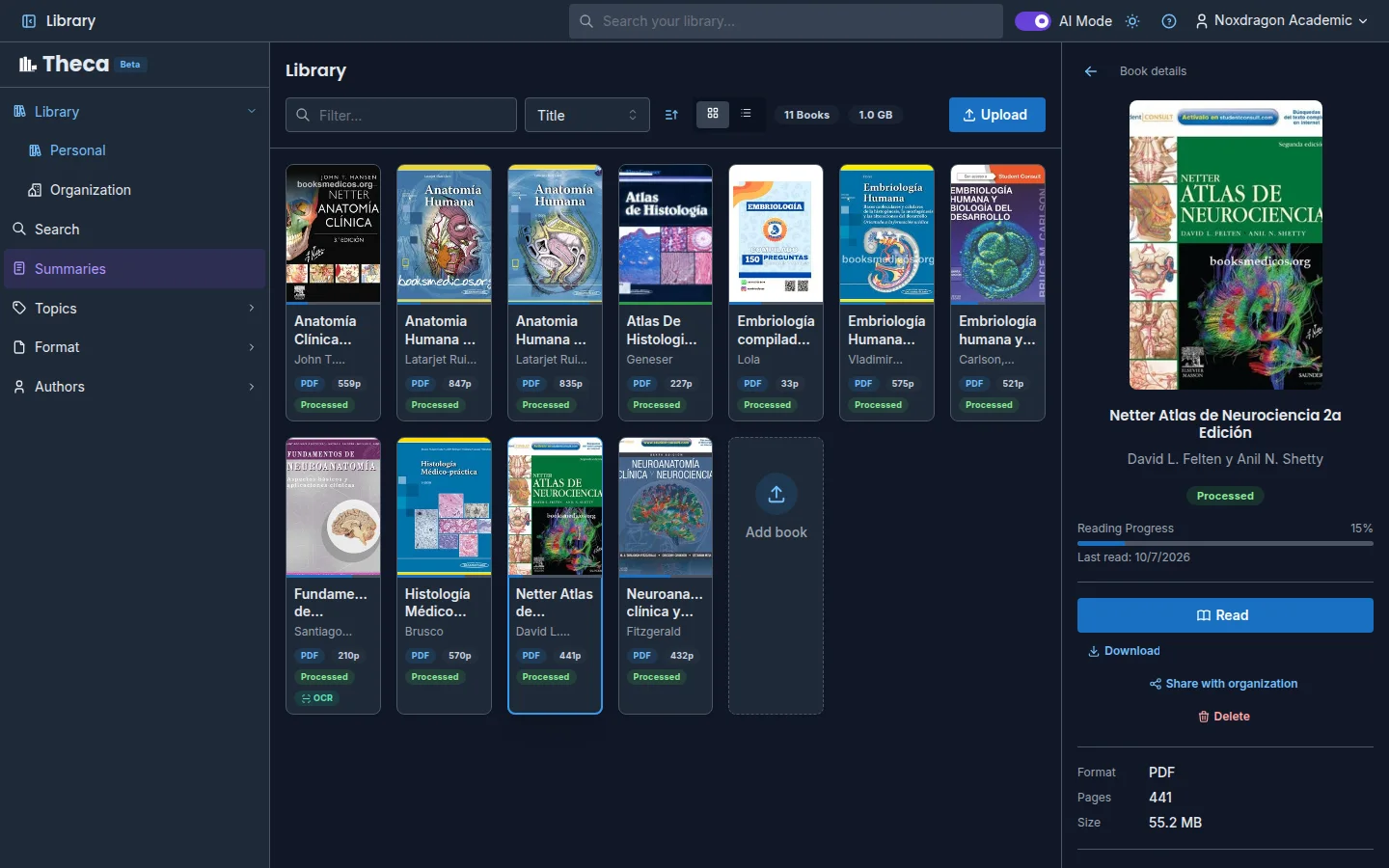
- Open the book in the Book details panel.
- Click Share with organization.
- Choose the organization and the tags, then click Share.
The panel then shows a Shared with section listing each organization and its tags. From there you can change the tags and click Save organization tags, or withdraw the book with Remove from organization.
Copy an organization book to your shelf
For an organization book, the detail panel shows Shared by followed by the organization's name. Click Copy to my library to get your own copy on the Personal shelf, independent of the one the organization shares.
Search organization books
In Search, the Include organization books switch adds those books to a Whole library search, and the Organization selector narrows the search to one of them. If you search Selected books, the book picker has its own Book source filter — Personal, Organization, or Mixed — plus Organization tags.
Organization storage quota
Each organization has its own storage limit. If it's reached when you upload or share a book, you'll see: The organization reached its storage limit. Ask a Noxdragon administrator to raise the quota.
FAQ
Which quota do shared books count against? Books on the Organization shelf count against the organization's storage quota. A copy made with Copy to my library moves to your personal shelf.
What happens to the books I shared if I delete my account? They stay available to the organization. The rest of your data (personal books, highlights, and reading progress) is deleted.
I don't see the Organization shelf. Why? It only appears if your account belongs to an organization. Ask its administrator to invite you.
Next step
- Your library — shelves, views, and the detail panel.
- Search your library — how to include organization books.
- Multi-book summaries — combine personal and organization books.