Reading a book in Theca
Updated on August 5, 2026
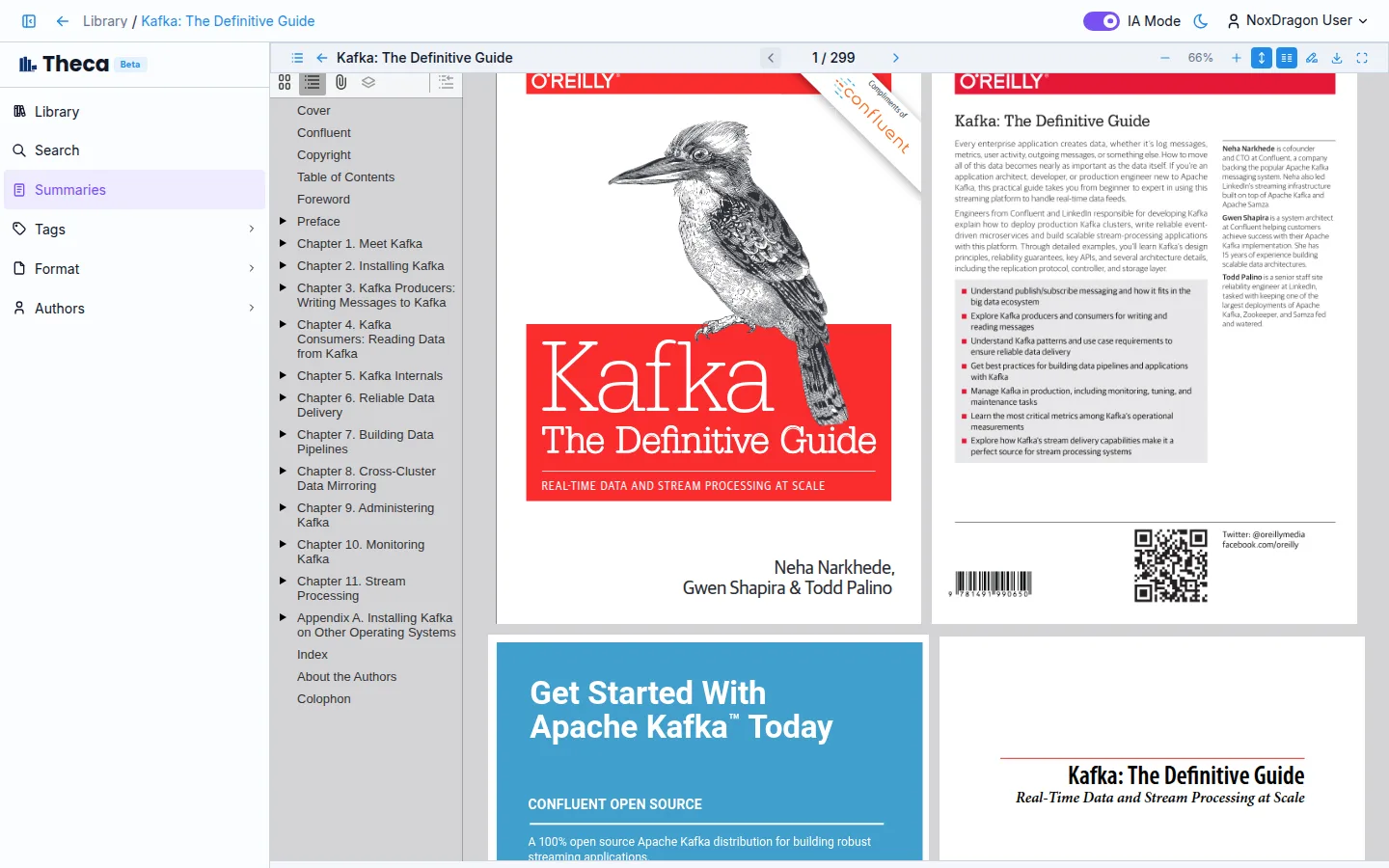
Theca has a built-in reader so you can read your books without needing any external app. Open a book and start reading right on the screen.
Supported formats
The reader supports three file types:
- PDF — displays the document page by page as it was created, with zoom and dual-page mode.
- EPUB — renders the book with adaptable typography, adjustable font size, and scroll mode.
- TXT — shows plain text and Markdown files with lightweight pagination.
If you upload a different format, Theca shows a Download button so you can read it with another app.
Opening a book
From the Library, press Enter on any book (or click Read in the detail panel). The reader opens and the file starts loading.
Picking up where you left off
Theca saves your position automatically. The next time you open the same book, the reader takes you straight back to the page where you stopped — no action required.
Your progress is stored in your account, so it works even if you switch devices.
The reader toolbar
At the top of the reader there is a toolbar with the main controls:
- Back (Escape) — closes the reader and returns to the library.
- Table of contents — opens the book index so you can jump to a chapter (appears when the book has an index).
- Previous page / Next page — navigate one page at a time.
- Page counter — shows the current page and total. Click the number to jump to a specific page.
- Zoom out (-) / Zoom in (+) — adjusts the document zoom.
- Scroll mode / Page mode — switches between continuous scrolling and page-by-page navigation (available for PDF and EPUB).
- Dual page — shows two pages side by side (available for PDF and EPUB when not in scroll mode).
- Highlight — activates highlight mode to mark passages.
- Download — downloads the original book file.
- Fullscreen (F) — expands the reader to fill the whole screen.
- More actions — on small screens, groups secondary actions into a menu.
Frequently asked questions
What happens if the book takes too long to open? Theca shows a notice when loading takes a while and offers a Retry button. Large books may take a few seconds the first time they load.
Can I read a scanned PDF with no text layer? Yes, you can open and read it. However, if the PDF is a scan with no selectable text, you won't be able to use semantic search or AI features on that book until you extract the text via OCR from the detail panel.
Is my progress saved if I close the app in the middle of a page? Yes. Theca saves your position automatically while you read.
Can I change the font size in an EPUB? Yes. The Zoom out and Zoom in buttons in the toolbar adjust the text size in EPUB files, rather than the page zoom used for PDFs.
Next step
- Navigating the reader — page controls, zoom, table of contents, and PDF loading states.
- Highlights and regions — mark important passages and review them later.
- Search your library — find any passage across all your books at once.