Exporting a summary
Updated on October 16, 2026
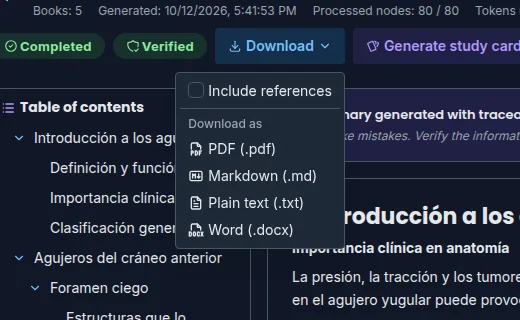
Once a summary has content, you can take it with you as a document to print, edit, or share.
How to download it
- Open the summary with View full.
- Click Download in the top bar.
- If you want the list of sources at the end, tick Include references.
- Under Download as, choose the format:
- PDF (.pdf)
- Word (.docx)
- Markdown (.md)
- Plain text (.txt)
Theca generates the file in your browser and lets you know with Download ready.
What the document includes
- The summary name as the title and all its sections, numbered 1., 1.1., 1.1.1. if you turned that on when creating it.
- Tables and lists with their structure and, in PDF and Word, rendered formulas and chemistry.
- In PDF, a compact, readable layout designed for studying, with an N of M footer on every page.
- If a section ended up empty, the document says so instead of leaving it out.
- With Include references, each citation appears in the text with its book's number and the document ends with a References section listing the cited books in Vancouver style. Without that option, the text comes out clean, with no citation marks.
The document is written in the summary's language, even if your app is set to another one: a Japanese summary carries «参考文献» over its references, for example. The PDF embeds the fonts needed for Korean and Japanese.
FAQ
Do references come out right if a book has no author? Yes. The reference is built from the available data without inventing an author. For more complete references, fix the title and authors in the book's detail panel before exporting.
Can I download a summary that's still being generated? The Download button appears as soon as the summary has content. For the complete document, wait for it to finish or use Process remaining.
Which format should I choose? PDF to read or print, Word to edit, Markdown for your notes, and plain text to paste anywhere.
Next step
- Citations and traceability — how the summary's citations work.
- Generate study cards for EON — review the summary with spaced repetition.
- Generate problems for SimuLab — practice with exercises.