Topics and filters
Updated on October 16, 2026
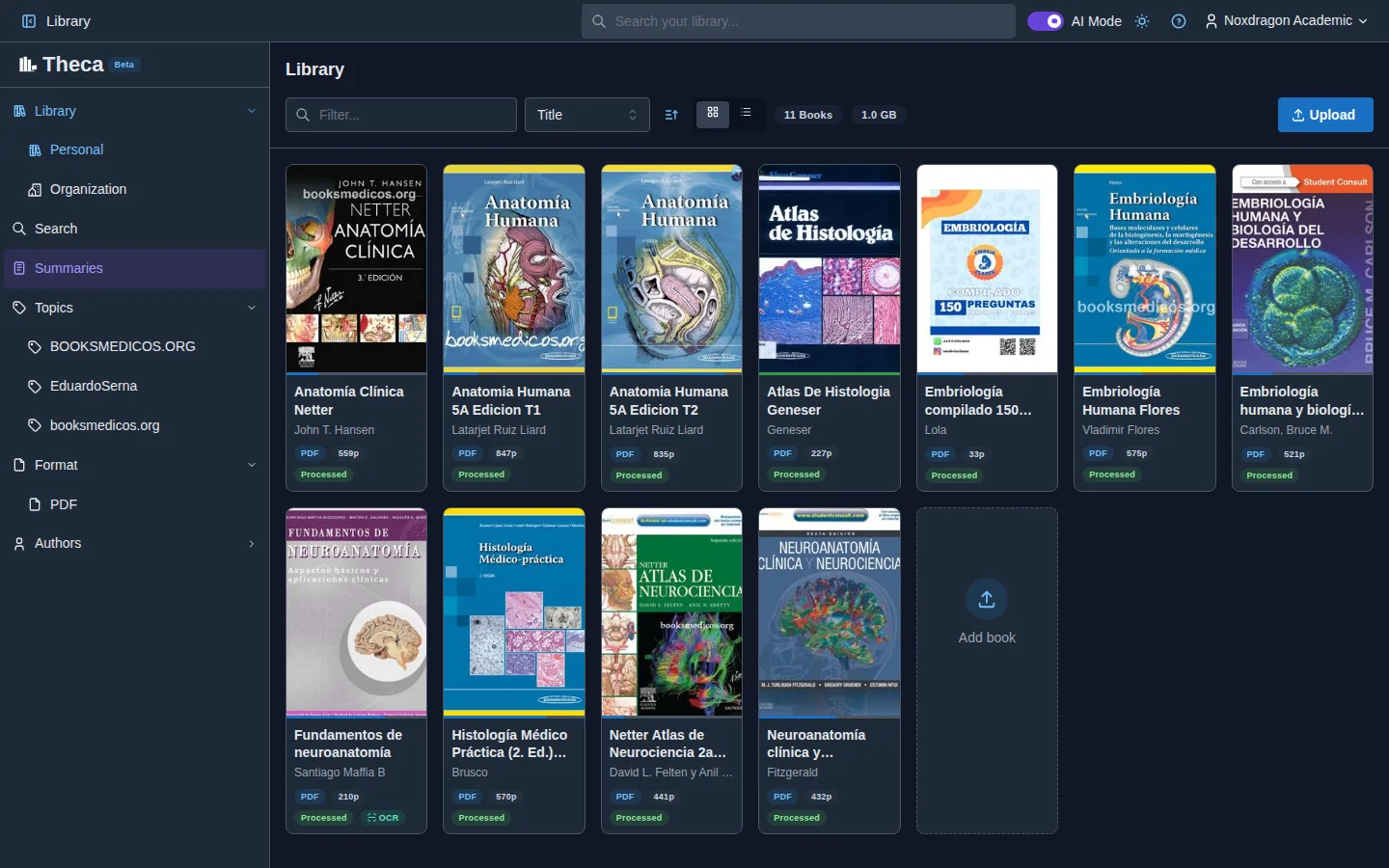
Topics let you group your books however you like: by subject, by project or by any other criterion. They used to be called "tags"; that name is now reserved for organization tags.
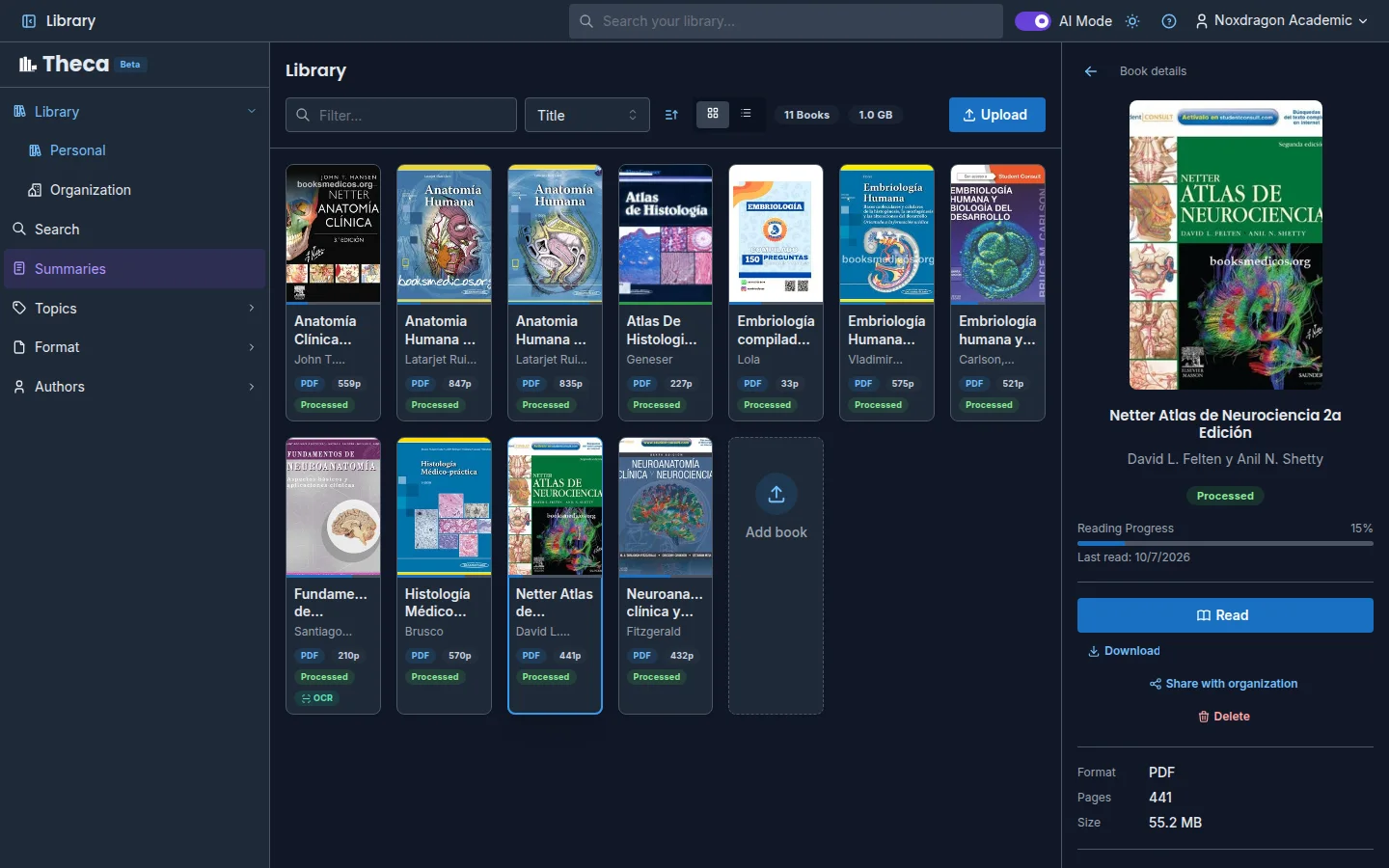
Adding a topic to a book
- Click the book to open the Book details panel.
- In the Topics section, type in Topic name....
- Press Enter or click Add.
You can add as many topics as you need to the same book. If a book has none, you'll see No topics.
Removing a topic
Each topic in the panel has an X on its right. Click it and the topic is removed from the book right away.
Filtering the library
The sidebar groups the library filters:
- Not processed (N) — books that can't be searched yet.
- Topics — expand the list and pick one.
- Format — PDF, EPUB or TXT.
- Authors — the authors of your books.
One click turns a filter on and takes you to the Library if you were on another screen; clicking the same filter again turns it off. Filters combine with the Filter... field and the toolbar's sort order.
Topics when choosing books
Topics are useful outside the library too. In the book picker of search and of the New summary wizard, the Topics and tags section groups My topics and your organizations' tags. Check one or more, choose Any or All and click Select the books of these topics and tags to pick all those books at once.
Title and author matter
Theca uses each book's title and author in citations, in the references of exported summaries and in the book picker. If they weren't detected correctly when the file was uploaded, fix them: click on them in the detail panel, edit the text and confirm.
Frequently asked questions
Can other people see my topics? No. Your topics are personal. The tags you see on an organization's books are something else: the organization defines them.
Can I rename a topic? Not for now. Remove the old topic and add the new one on each book.
Do the library filters affect search? No. Search has its own scope: Whole library or Selected books.
Next step
- Your library — views, toolbar and detail panel.
- Organizations — organization tags and shared books.
- Search your library — how to choose which books to search.