Review session shortcuts
Updated on August 5, 2026
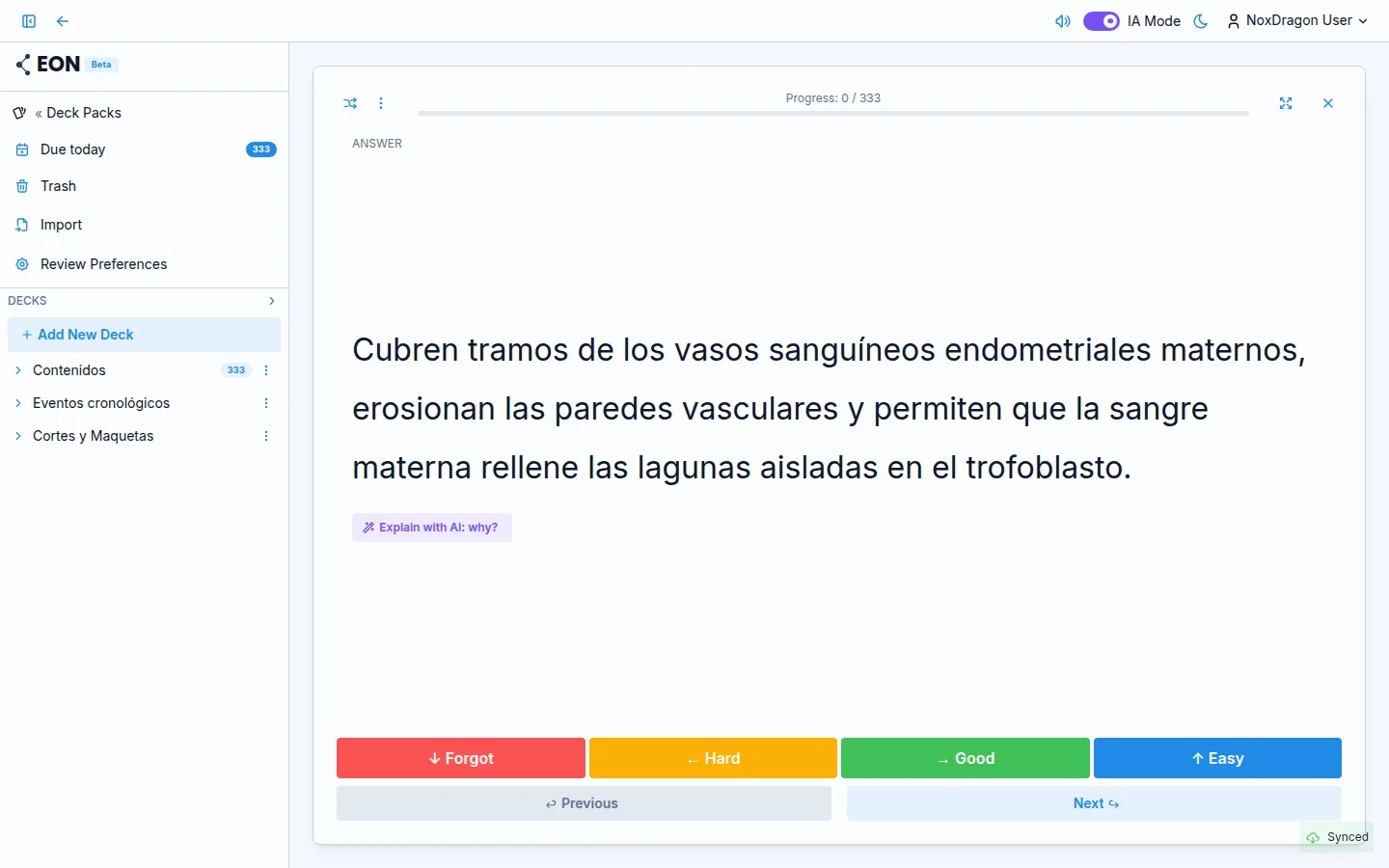
During a review you do not need to reach for the mouse for everything. EON has keyboard shortcuts so you can stay focused on the content rather than the screen.
Keyboard shortcuts
| Action | Key |
|---|---|
| Show answer or advance to the next rectangle | Space or Enter |
| Rate as Forgot | 1 or ↓ |
| Rate as Hard | 2 or ← |
| Rate as Good | 3 or → |
| Rate as Easy | 4 or ↑ |
| Toggle zoom (diagram cards only) | Z |
| Adjust zoom while the popover is open | ← → (arrow keys) |
| Toggle fullscreen | F |
| Exit zoom, then fullscreen, then the review | Escape |
The rating buttons also show the reference arrows next to their labels on screen.
Fullscreen
The fullscreen button is in the session header. You can also toggle it with F. In fullscreen, the card takes up the entire window and the rest of the interface disappears.
Zoom for diagram cards
When you are on a diagram card, a zoom button appears in the header. Press the button (or press Z) to activate zoom mode. Once active, use the arrow keys to adjust the level from 1.0× to 4.0× in steps of 0.1. Press Escape to exit zoom.
Shuffling and unshuffling the card order
There is a shuffle button in the session header. When active, the order of the remaining cards is randomized. When you press Restore Order, they return to their original order. This does not affect cards you already reviewed in that session.
Review answer sound
The app can play a short sound each time you rate a card. You can turn it on or off in Review Preferences — Review Answer Sound.
Deleting a card without leaving the session
Open the ⋮ menu in the header and choose Move to Trash. The app asks for confirmation, and if you confirm, the card disappears from the current session and goes to the trash. You can restore it later from the deck's trash view.
If you are using the app on mobile, the rating buttons appear in a compact size without the reference arrows, but the flow is the same.
Frequently asked questions
Do shortcuts work if a modal is open? No. Keyboard shortcuts only fire when no modal (such as a delete confirmation) is open on top.
Can I rate before seeing the answer? No. The rating buttons and the number and arrow shortcuts only become active after the answer is revealed.
Does the zoom level persist between cards? The zoom level stays active for the duration of the session. Closing and reopening a session resets it to the default value.
Next step
- Review sessions — the full session flow explained step by step.
- The spaced repetition algorithm — how your ratings decide the next review date.