Your library
Updated on August 5, 2026
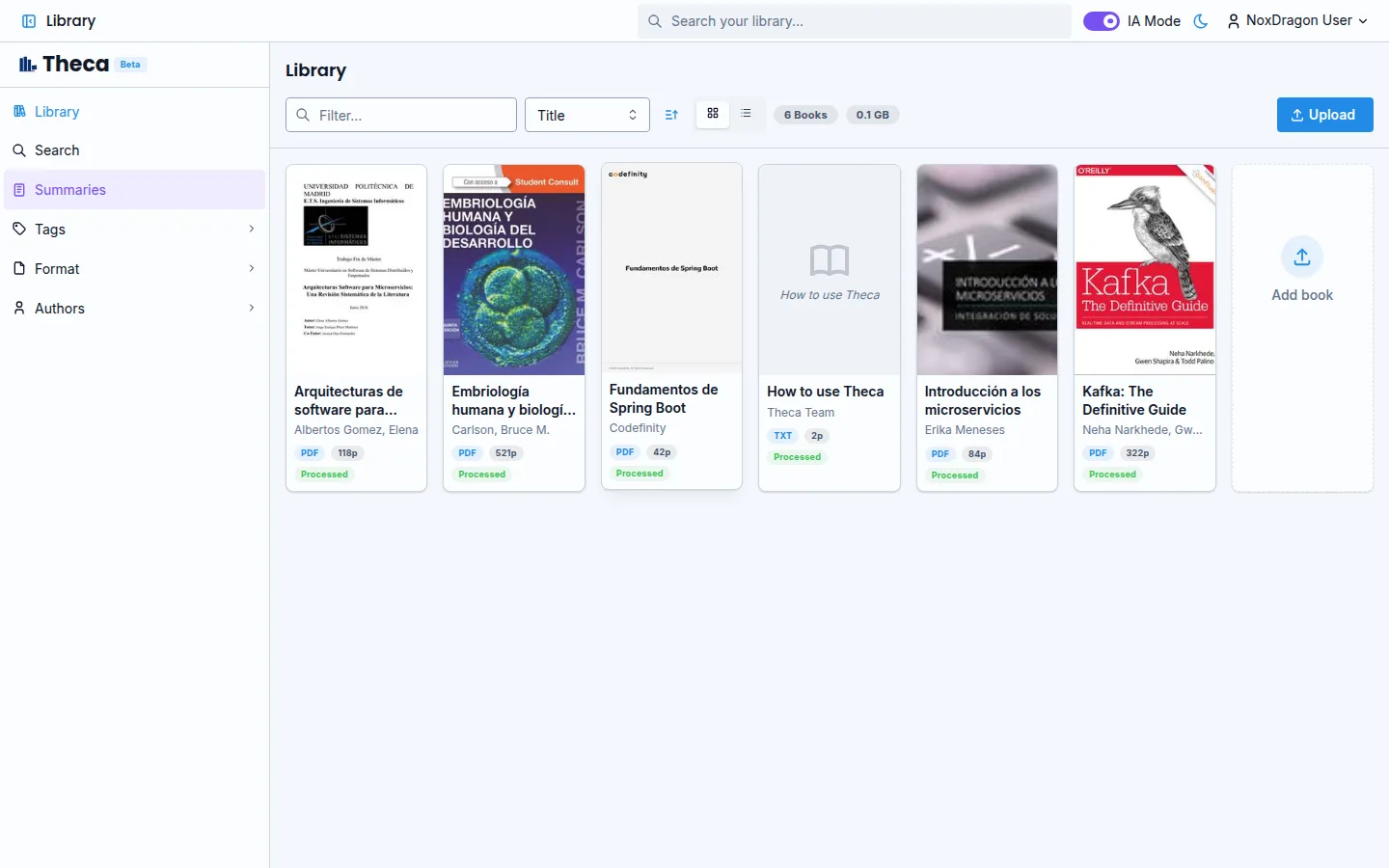
The Library is your personal space in Theca. Only you can see the books you upload — your collection is completely private.
Grid view and list view
The library has two views. Use the control in the toolbar to switch between them:
- Grid — shows book covers. Great for spotting a title at a glance.
- List — shows books in rows with more detail visible.
In both views you can click a book to open its detail panel, or double-click to open it directly in the reader.
The toolbar
Above your books there is a toolbar with controls to filter, sort, and manage your library:
- Filter — type part of a title or author name to narrow down results.
- Sort — choose the criterion: Title, Author, Date added, Last read, Pages, or Size. The arrow button reverses the order.
- View mode — toggle between grid and list.
- Upload — opens the upload panel to add new books.
- Process all — appears when you have unprocessed books; queues all of them at once.
The left sidebar lets you filter by tag, format, or author with a single click. To clear that filter, tap the X that appears next to it in the toolbar.
The detail panel
Click any book and a side panel opens with all the book's information: cover, title, author, format, page count, size, and ISBN if available. It also shows your reading progress and any tags you have assigned.
From the detail panel you can:
- Open the book in the Reader.
- Process the book so it becomes searchable and available for summaries.
- Download the original file.
- Delete the book from your library.
The title and author are the fields Theca uses to identify the book in citations and summaries. If the app did not detect them correctly, you can edit them directly in the detail panel.
Empty state
If you just signed in and your library has no books, you will see a welcome screen with a Upload your first book button. Tap it to go straight to the upload panel.
Frequently asked questions
Are my books private? Yes. Your library is strictly personal. No other user can see or access your books.
How do I know how many books are processed? The toolbar shows a summary with the total number of books, how many are processed, and how many match your current filters.
Can I change a book's title or author? Yes. In the detail panel, the title and author fields are editable. Click on them to make changes.
I uploaded a book but it's not showing up — what do I do? Wait a few seconds and refresh the page. If the book appears but without the "Processed" status, use the Process button in its detail panel.
Next step
- Uploading books — how to add books to your library and track each one's status.
- Tags and organization — organize your collection with tags.
- Indexing and OCR — what happens after you upload a book and why some take longer.